Design
Real products, with real specifications.
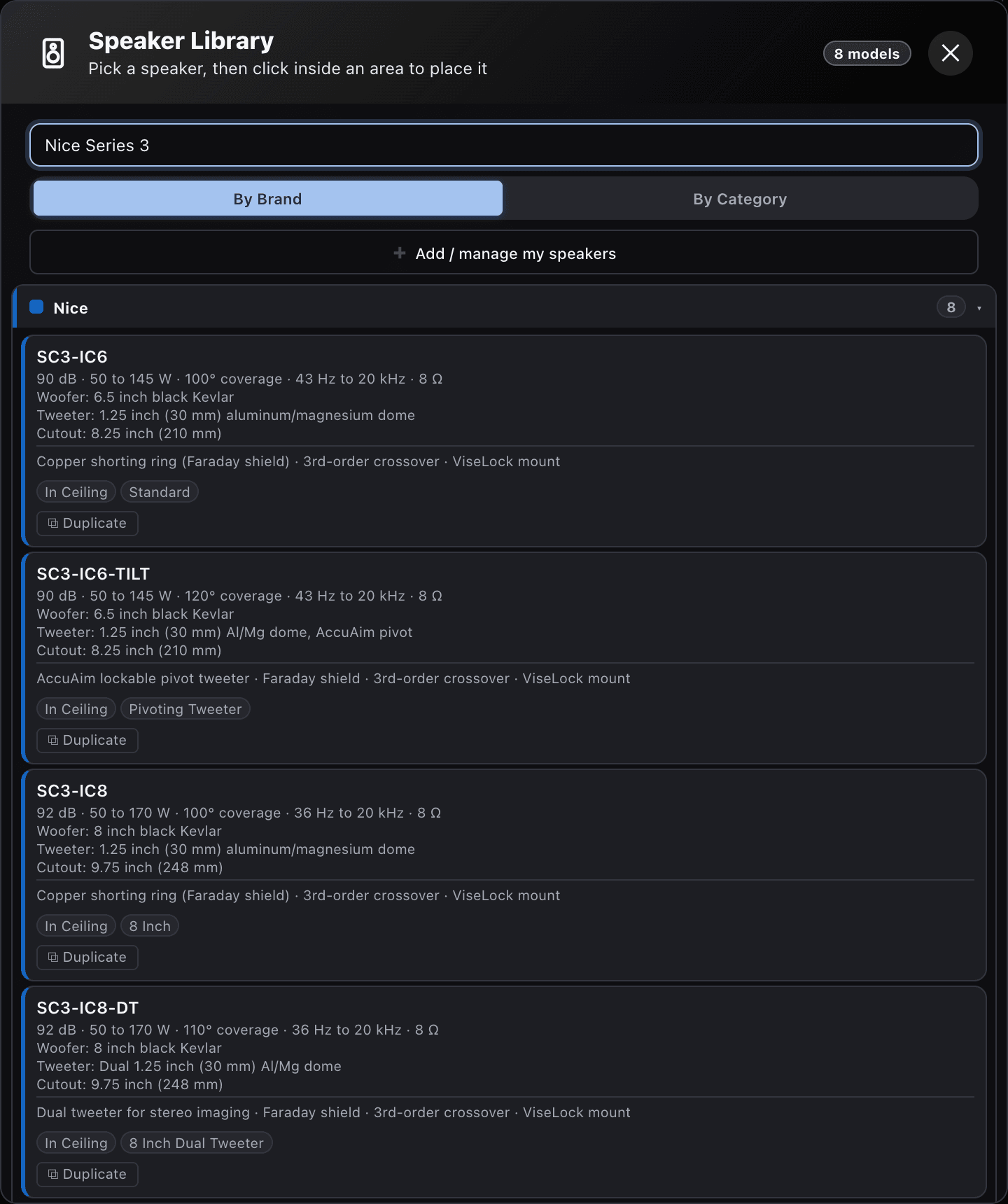
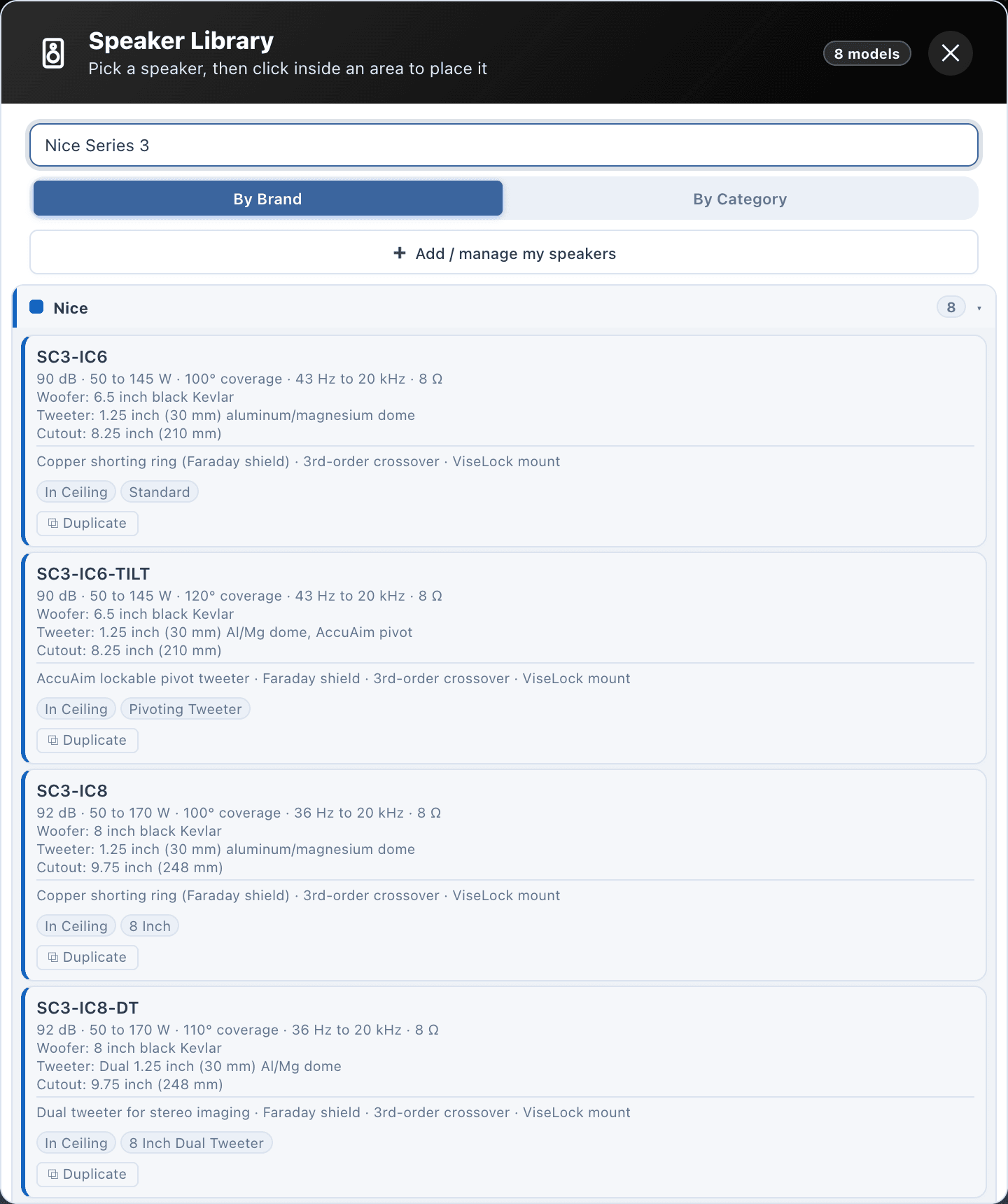
Real models with real specifications. Speakers sit on the plan at their true footprint. Search the library by brand or by category, check the datasheet figures on each card, and place a model with one click.
six libraries
Speakers to recorders, in one catalogue.
The catalogue holds speakers, amplifiers, rack and system gear, Wi-Fi access points, cameras and recorders. Every card carries the figures you check before you specify: for a speaker, its sensitivity, power handling, coverage angle, frequency range, drivers and cutout.
Search by brand or by category, pick a model and click inside an area to place it. The library search in the Project explorer places a model with one click too.
| Speakers, 153 | |
|---|---|
| Brands | Garvan Acoustic 59, Mag Audio 32, Nice 32, Cornered Audio 10, Krix 9, Stealth Acoustics 7, Flat Panel Audio 4 |
| Types | Surface mount 44, in-ceiling 35, subwoofers 35, in-wall LCR 19, garden 13, corner mount 7 |
| Amplifiers, 34 | |
| Brands | LEA Professional 24, Mag Audio 6, Nice 3, Pulse-Eight 1 |
| With Dante | 15 |
| Rack and system gear, 55 | |
| Brands | Netvio 22, Ubiquiti 8, Pulse-Eight 6, Audinate 5, Nice 5, Innovo 4, ELAN 3, Netgear 1, TP-Link 1 |
| Kinds | Video distribution 17, Dante 10, switches and routers 10, controllers 9, audio matrices 8, audio player 1 |
| Wi-Fi access points, 20 | |
| Brands | Aruba Instant On 3, Cisco 3, Grandstream 3, Ruckus 3, TP-Link 3, Ubiquiti 3 |
| Generic models | 2 |
| Cameras, 34 | |
| Brands | Nice 10, Dahua 5, Hikvision 5, Ubiquiti 4, Axis 3, Bosch 2 |
| Types | Bullet 13, turret 8, dome 6, PTZ 5, fisheye 2 |
| Generic models | 5 |
| Recorders (NVRs), 12 | |
| Brands | Hikvision 3, Dahua 2, Ubiquiti 2, Axis 1 |
| Generic models | 4 |
true size
On the plan, at its real footprint.
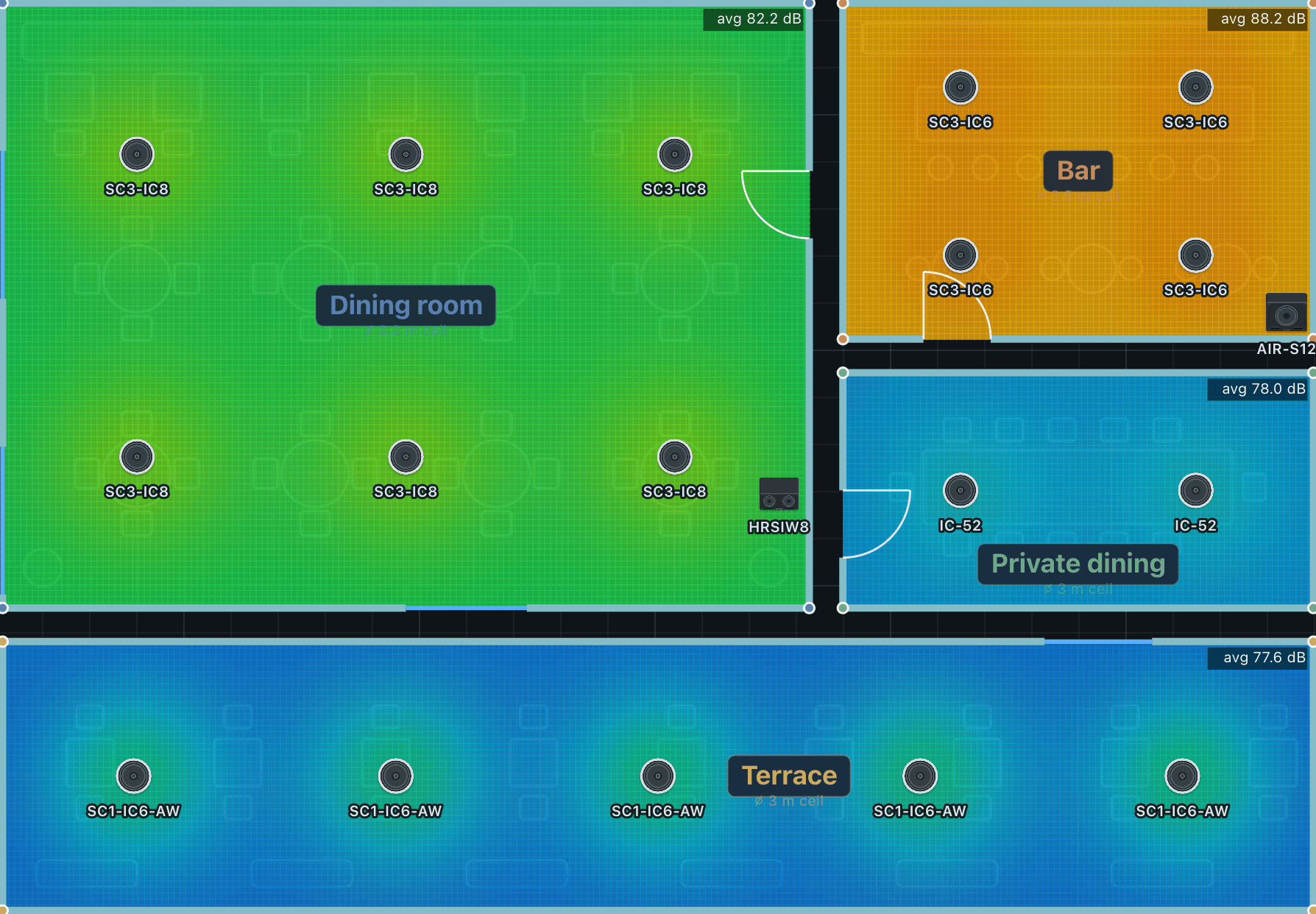
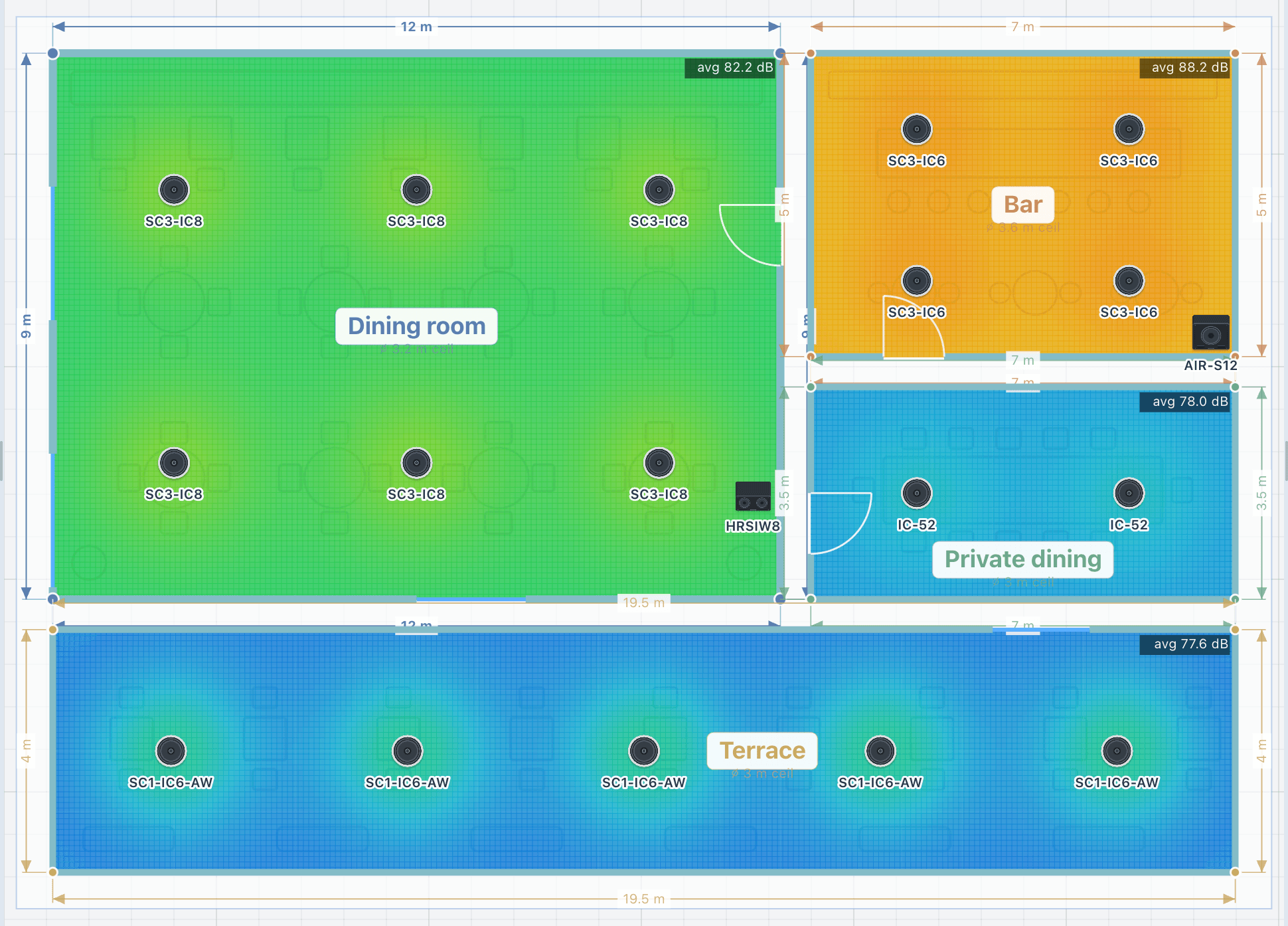
A speaker sits on the plan at its real footprint, and the drawings show it at true size: a round in-ceiling speaker is a circle at its cutout diameter, and a flat or invisible panel is a rectangle at its cutout, turned the way you placed it. Nobody cuts a round hole for a square speaker.
The mount is read from the datasheet, and you can change it. Every speaker carries its passband into the calculations, so a small satellite makes no deep bass in the walk-in sound test, and a subwoofer is judged in its own range.
Flat panels are modelled as what they are: a distributed-mode panel loses only about 3 dB per doubling of distance out to roughly 10 m, and its 165° rating is a window, not a −6 dB cone.
how it works
Choose a model, then place it precisely.
Place speakers preciselyTask guide 04 · 3 min
Choose and place a model
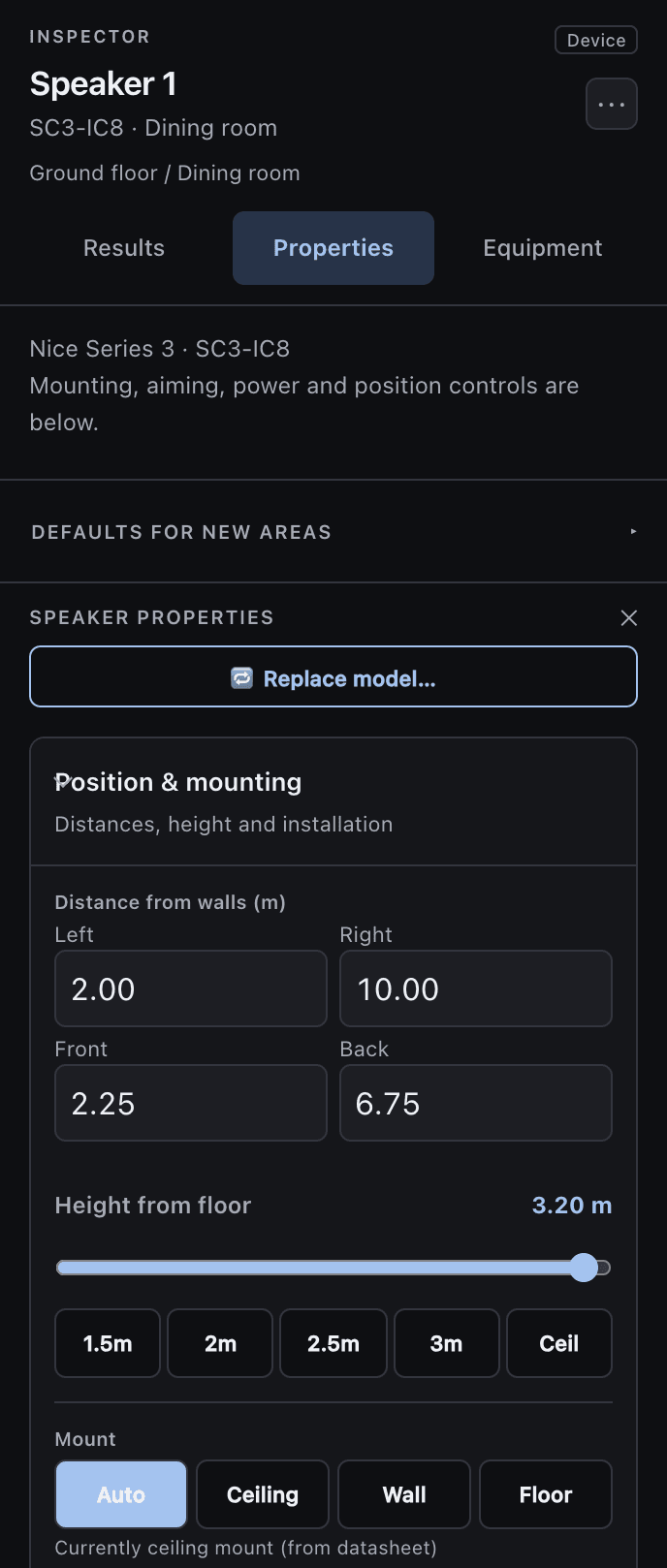
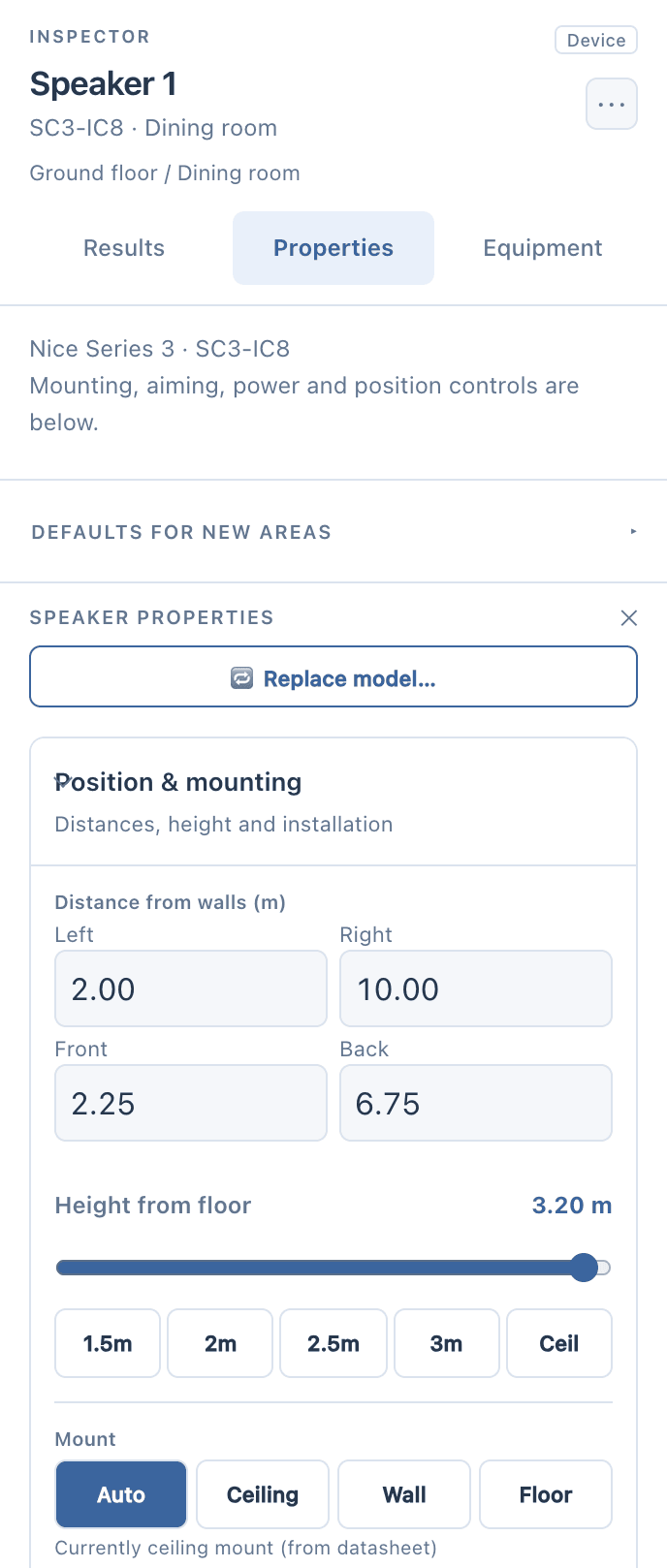
Open Library in the Project explorer. Search for the intended model, check its name and choose Place. Click inside the room to install it at the pointer, then choose Select and click that speaker. Open Properties in the Inspector.
Set position and mounting
Open Position & mounting. For a rectangular room, Distance from walls shows Left, Right, Front and Back values in metres. Change Left and Front to refine the position. Select the speaker again to refresh and review all four distance readouts. Review Height from floor and Mount separately. Free position allows movement inside the room; Stick to wall attaches it to a wall.
Aim without moving the device
Open Aiming & orientation. Adjust Pan with the slider, direction presets or 5° / 15° buttons. Watch the speaker turn at its saved position. Review Vertical aim (tilt) separately, then enlarge Vertical coverage to inspect where the beam reaches listening height.
Keep in mind
The recordings use an AIR-C6 in a rectangular training room. Check the selected model and room in your own design. Changing position, mounting and aiming are different edits; review each setting before checking coverage.
Lesson 02 · 11:09Speakers, coverage and the 3D review
- 0:00The speaker library
- 0:37Search the library
- 1:00Model details
- 1:29Select a placed speaker
- 2:17Position and mounting
replace model
Swap a model without starting again.
Replace model swaps one speaker, every speaker of that model in the area, or the whole design. Positions and aim are kept, and the results work themselves out again for the new model.
The Coverage Advisor always sizes an area for the model already in it, so a stray click in the library never swaps the speaker you chose.
your products
Your own products, your own prices.
Paid accounts can add their own products, import a whole brand book from a CSV, and apply their own price list across the job. We switch this on per account, on top of a paid subscription; it is not part of the trial.
A product you add joins the library, the rack, the wiring diagram and the bill of materials, and one teammate’s products and prices can serve the whole company.
Dealers can pull catalogue prices from the dealer portal into the proposal, and send the bill of materials to the shop cart at their dealer price with Order online.
in figures
The catalogue, counted from the tool.
Counts are the tool’s built-in tables. Brand and product names in the catalogue belong to their owners; a product in the catalogue does not mean a partnership.
- devices
- 308
- speaker models
- 153
- amplifiers
- 34
- cameras
- 34
questions
Questions, answered plainly.
Can I add a product that is not in the catalogue?
Yes, on a paid account once it has been switched on: add a product with its datasheet figures, or import a brand book from a CSV. Adding your own products is not part of the trial.
Does a brand in the catalogue mean a partnership?
No. Brand and product names in the catalogue belong to their owners, and a product in the catalogue does not mean a partnership.
What happens to my design when I swap a model?
Replace model keeps every position and aim, and swaps one speaker, every one of that model in the area, or the whole design. The results then work themselves out for the new model.
Ready when the client is.
Draw it, check it, show it, price it and hand it over, from one project.
15-day trial for approved companies. No card, nothing to cancel.