Delivery
The client walks in, and hears where the sound will be.
The client walks into the room and hears where the sound will be. Test sound walks the room on your own machine; Share 3D sends the same walk-in to the client’s phone as a QR code or a link.
walk
Stand inside the room, at ear height.
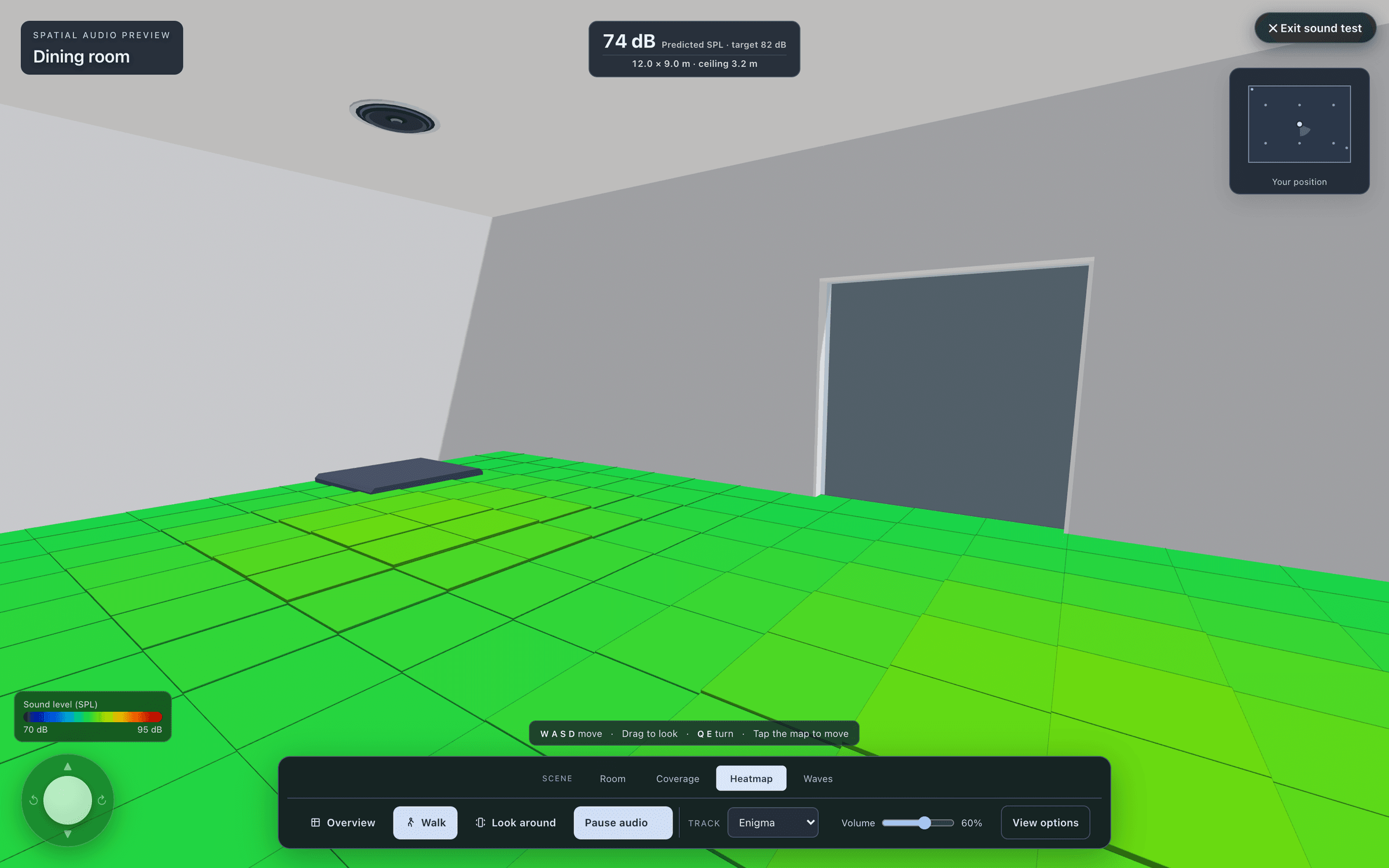
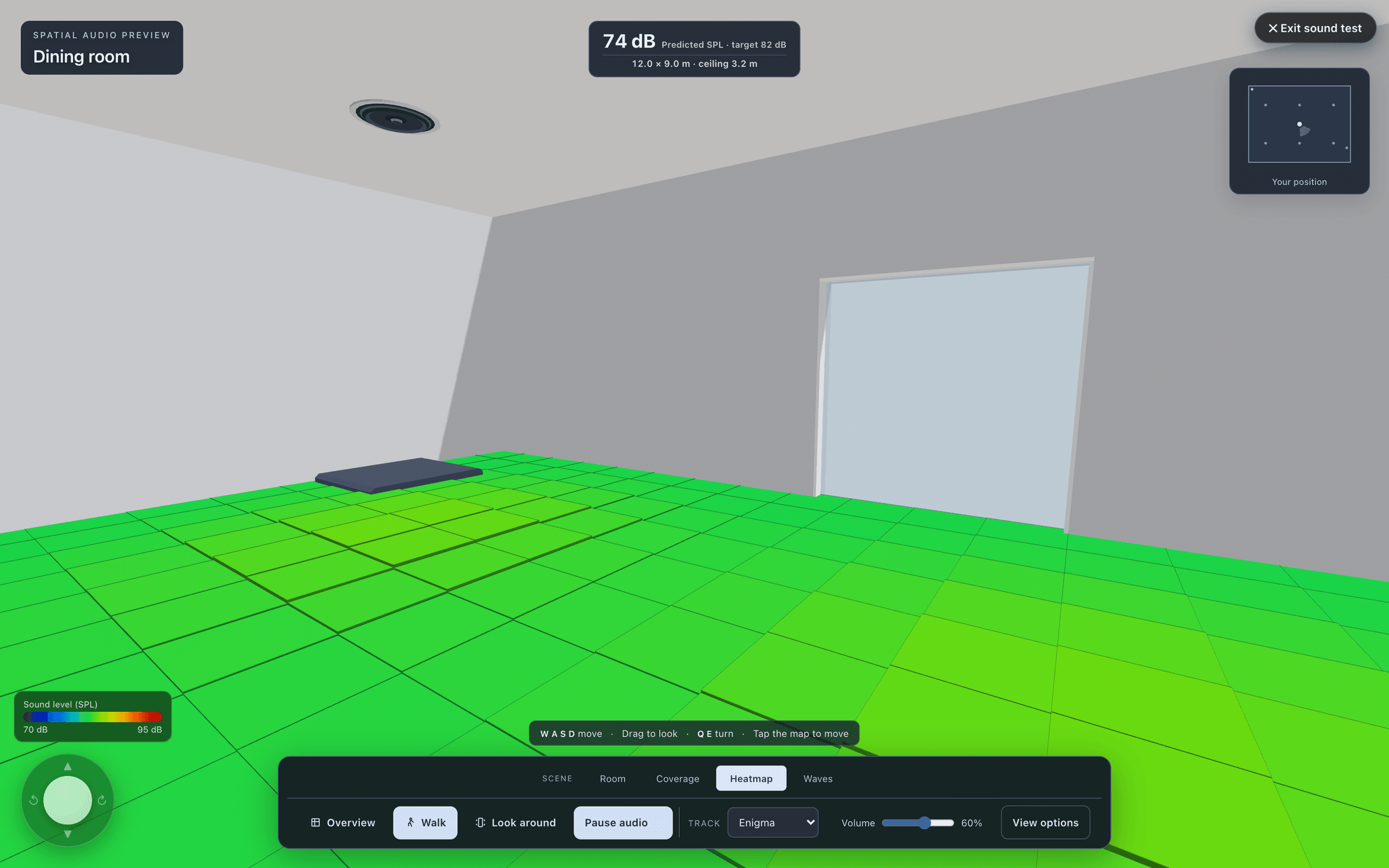
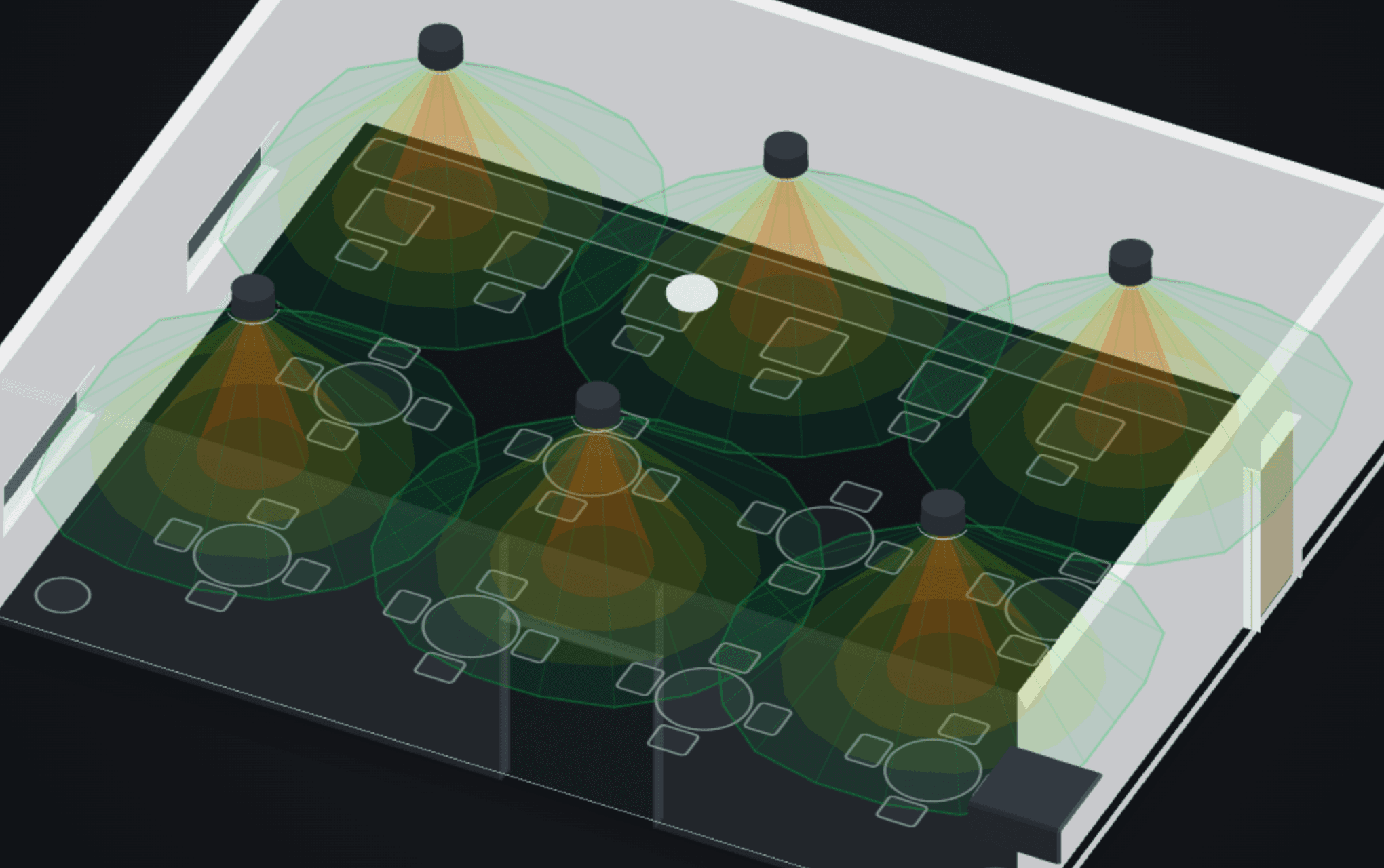
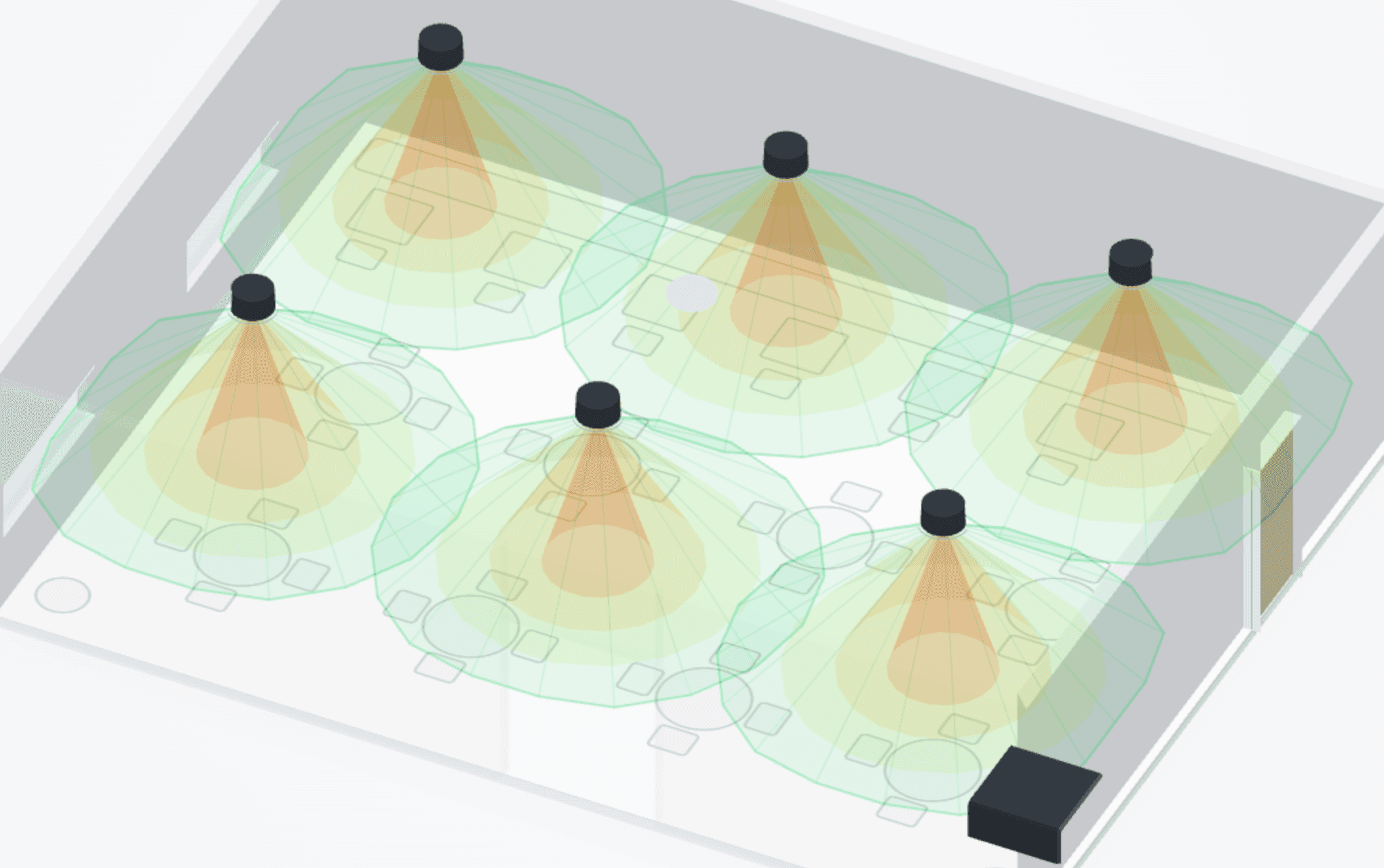
Test sound opens a walk-in 3D of the area on your own machine, with no QR code needed. Tap a glowing point to stand there and look around, or walk with the on-screen joystick, or with W, A, S and D on a computer. You always stay inside the room.
A live readout follows you: the predicted level where you stand, coloured like the heatmap and set against the area’s target, and the room’s size. Walk to a far corner and watch it drop; walk to a focus pin and the system sounds its best.
A comparison, not a meter
The preview compares positions. Playback through your headphones or speakers is not a calibrated measurement of the level on site.
how it works
The architecture, then the listening experience.
Review in 3D and Walk and listenTask guide 07 · 2 min
Open 3D
Choose 3D above the plan. Use Orbit in the canvas dock and drag the model to inspect wall geometry, materials and device mounting heights from several angles.
Walk through the design
Choose Walk & listen in the 3D controls, or open it from Present. Move through the room and pause at several listener positions to compare the displayed predicted level.
Return to Plan
Exit the walkthrough and choose Plan. Select the speaker again, open Properties, then expand Aiming & orientation to inspect its pan and tilt. Changing the viewpoint does not move installed devices.
Keep in mind
The listening preview is a comparison tool; playback through your headphones or speakers is not a calibrated measurement of on-site SPL.
Lesson 02 · 11:09Speakers, coverage and the 3D review
The whole lessonwhat you hear
Each speaker from its direction, at its predicted level.
Press Sound and music plays through the speakers. Each one is heard from its real direction and height, at the level the SPL engine predicts, with its vertical aim, boundary loading, air absorption and any site calibration applied.
Each speaker plays only its real frequency range from the datasheet, so a small satellite makes no deep bass and a system without a subwoofer sounds bass-light, as it would in the room. The bass swells and thins as you walk through the room modes, the reverb follows the area’s RT60, and with a noise floor set you hear the ambient too.
Sound wave
Wavefronts spread from every speaker in time with the music, coloured like the heatmap, so a client can watch the room fill.
Noise
Switch the area’s background noise on and off, and show how the system cuts through a busy room.
Your own music
Upload an MP3 for the demo. It is trimmed to about 35 seconds so it fits inside the share, and it is remembered on this device.
present and share
Present it in the meeting, then send it to their phone.
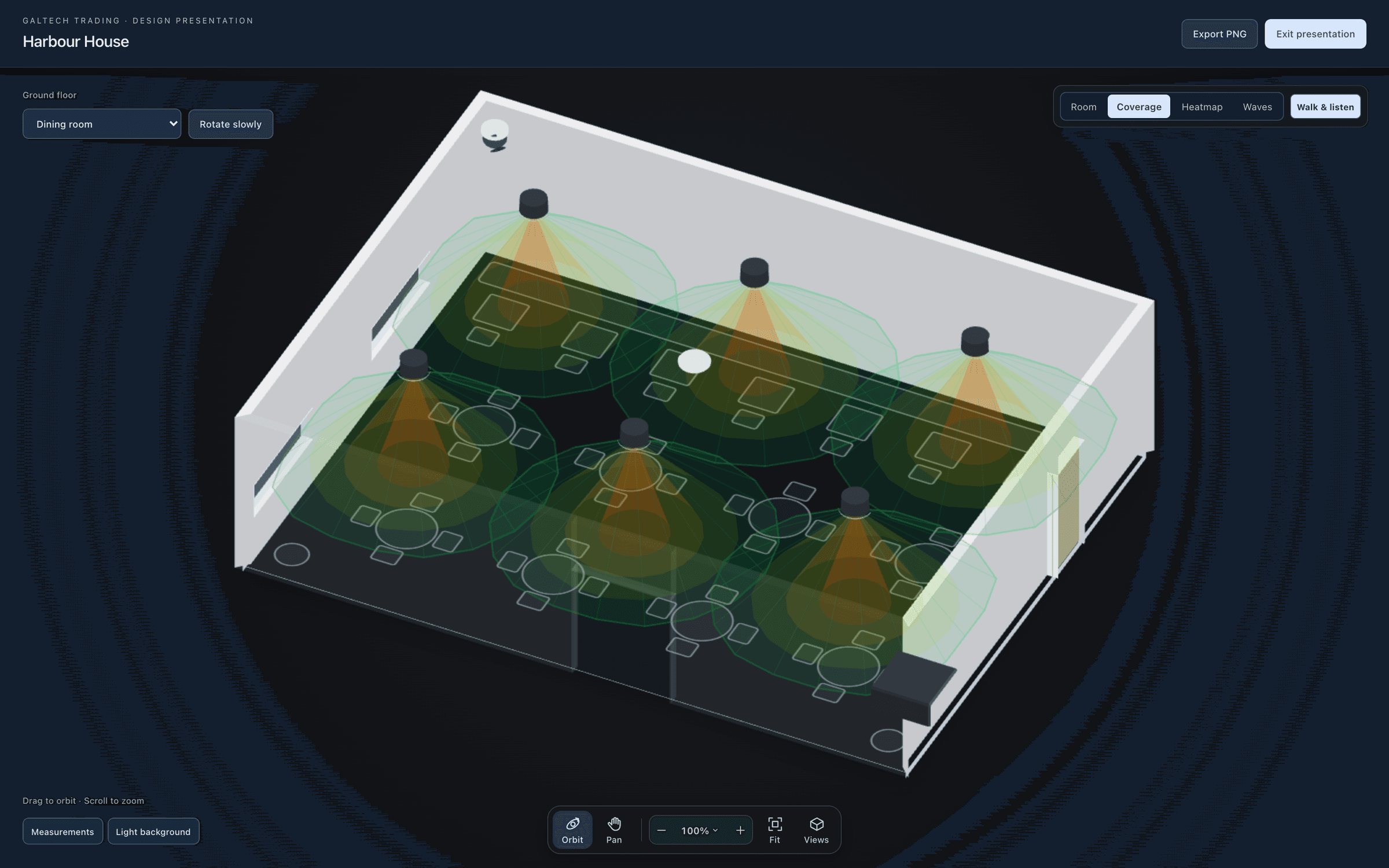
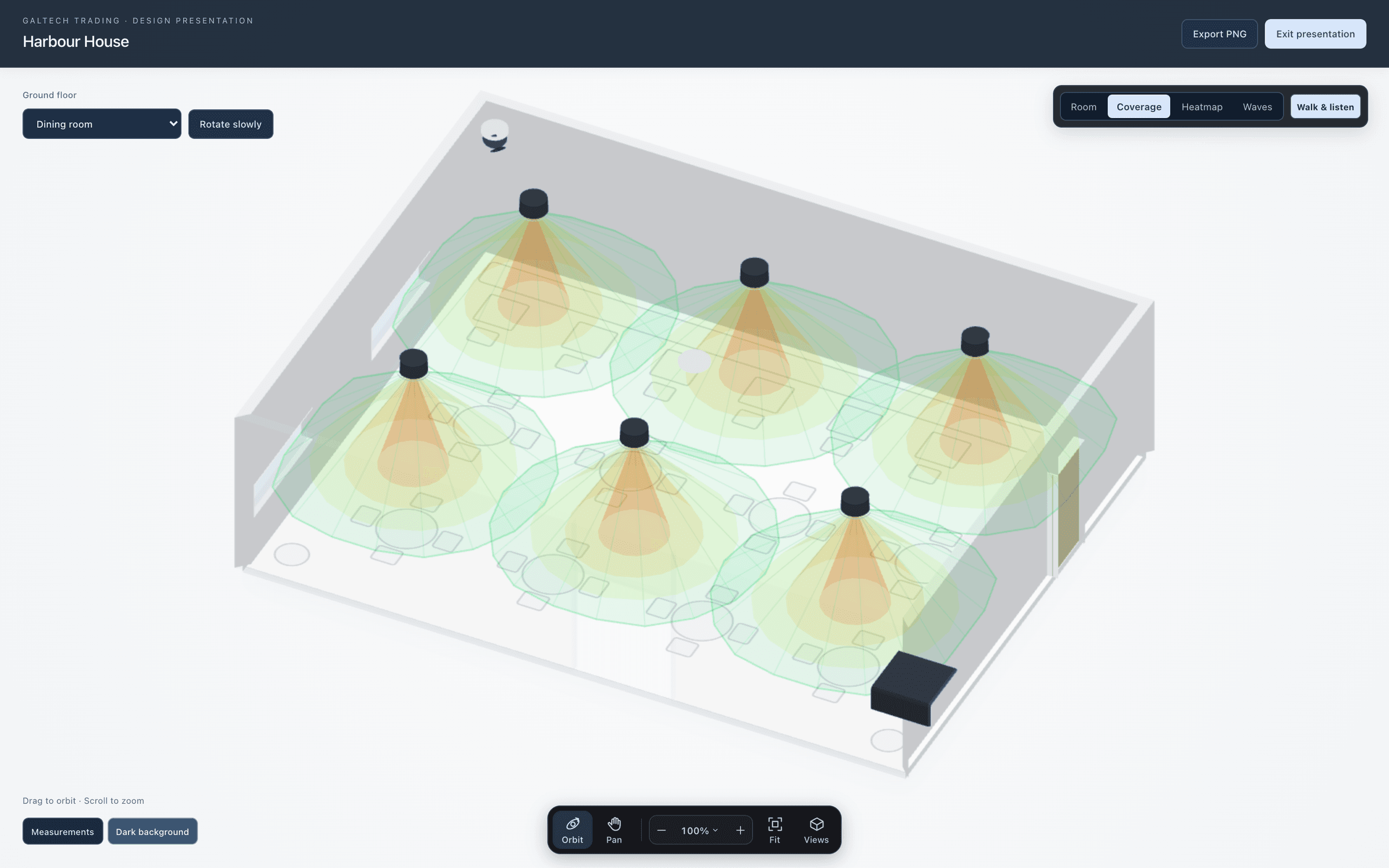
Present opens the design as a 3D presentation the client can follow, with the editing handles hidden, and the walk-in one click away.
To send it, select an area and press Share 3D. A QR code appears, or copy the link. The client opens a walk-in 3D of that room, with the speakers, coverage and heatmap to scale and the same sound. It opens as your experience: your logo and company name on a welcome screen with a short design summary (how many speakers, the target level, the room size) before they tap Explore your room in 3D. A small Powered by Lyra line sits in the footer.
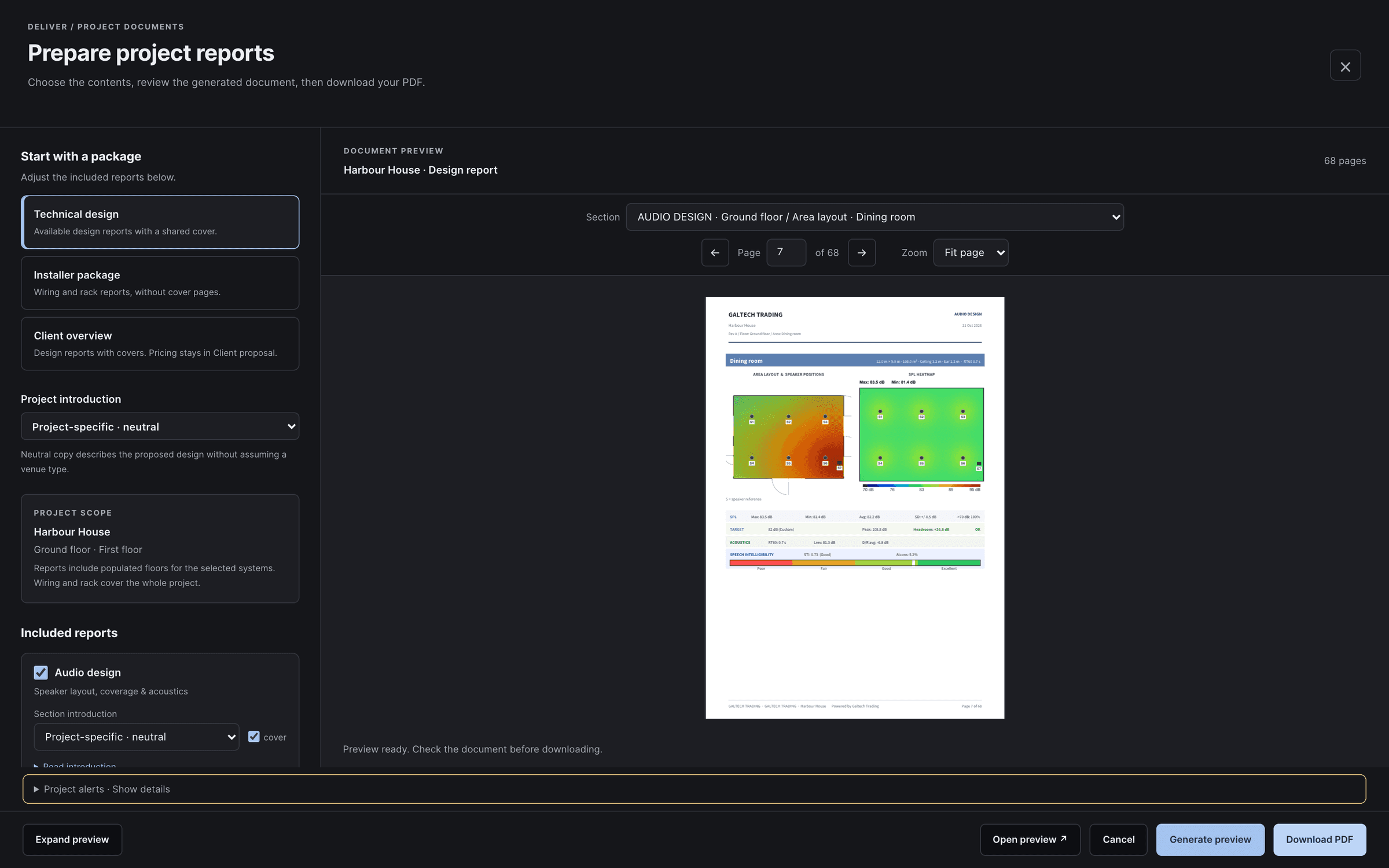
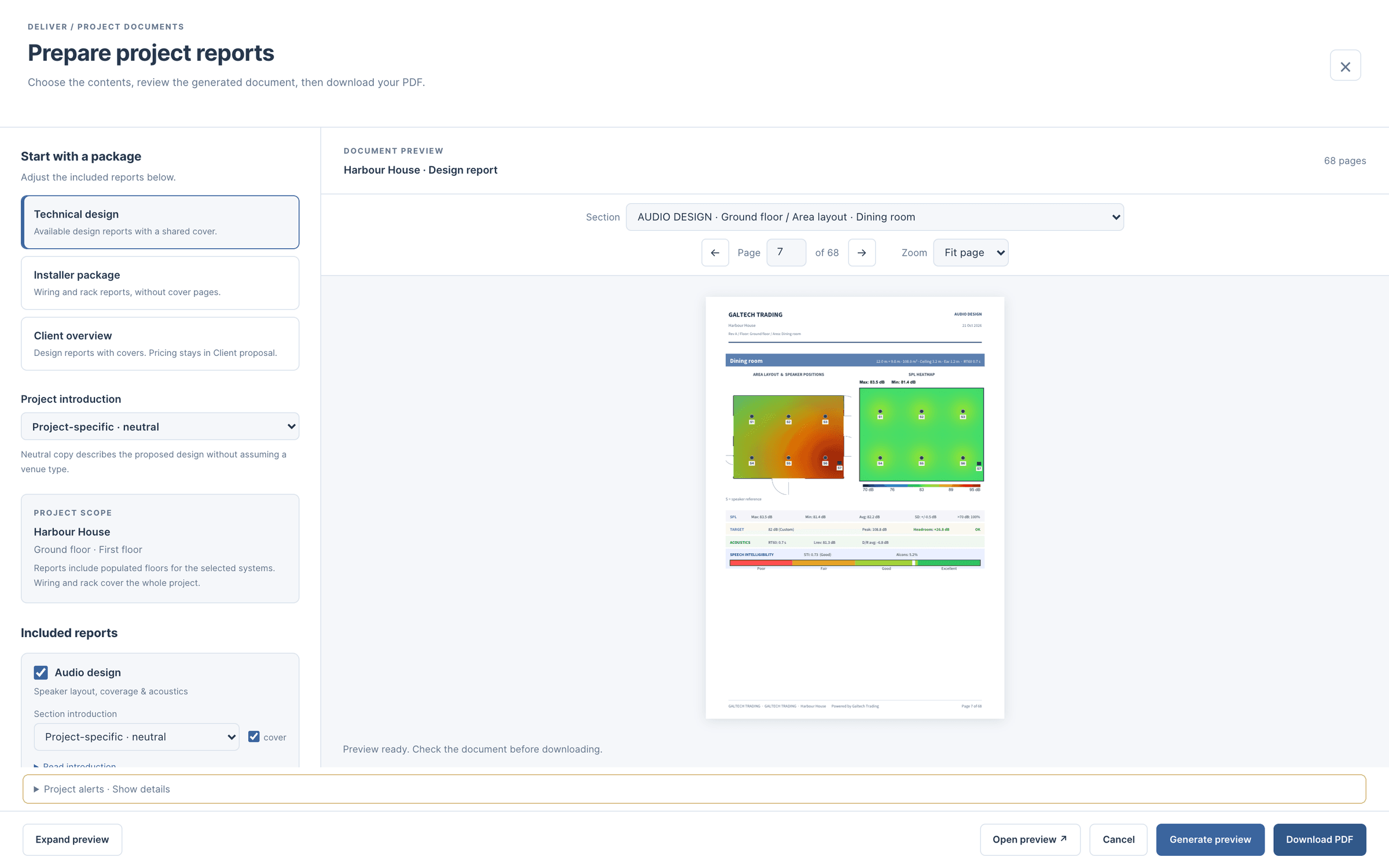
Preview client view runs that exact experience on your machine first. Links expire after 90 days by default, a link can be given another lifetime, and you can revoke one at any time. Creating a share needs your portal sign-in. The audio report prints a QR code under every area’s 3D view as well.
in figures
Walk and listen, in figures.
- default life of a share link, revocable
- 90 days
- QR code per area in the audio report
- 1
- about, of your own music in a share
- 35 s
| Level | The SPL engine’s prediction where you stand, against the target |
|---|---|
| Direction | Each speaker from its real position and height |
| Frequency range | Each speaker’s datasheet passband |
| Room | Reverb from the area’s RT60, and the room modes in the bass |
| Noise | The area’s noise floor, switched on or off |
| Moving | Joystick, W A S D, or a tap on a glowing point |
| Sharing | QR code or link, 90 days by default, revocable |
questions
Questions, answered plainly.
I cannot hear the walk preview. What should I check?
Open Walk and listen and confirm a track is playing, and check the device or browser volume. Move to a room with speakers and read the displayed level, then try another position to compare.
The troubleshooting articleIs the walk-in level what the client will measure on site?
No. It is the model’s prediction played back for comparison, not a calibrated level. Commission with an SPL meter; site calibration then trims the model, and the walk-in, to what you measured.
Can I stop a client link from working?
Yes. A link expires after 90 days by default, can be given another lifetime, and can be revoked at any time.
Ready when the client is.
Draw it, check it, show it, price it and hand it over, from one project.
15-day trial for approved companies. No card, nothing to cancel.