Review and delivery
Review in 3D and walk and listen
Check walls, mounting heights and coverage in the 3D view, then walk through the room at ear height and hear how the predicted level changes from spot to spot.
On this page
The 3D view builds the rooms from the walls you drew, with the ceiling heights and every device at its mounting height. Walk and listen then puts you inside a room at ear height, playing music through the speakers you placed, at the level the tool predicts. Neither changes the design.
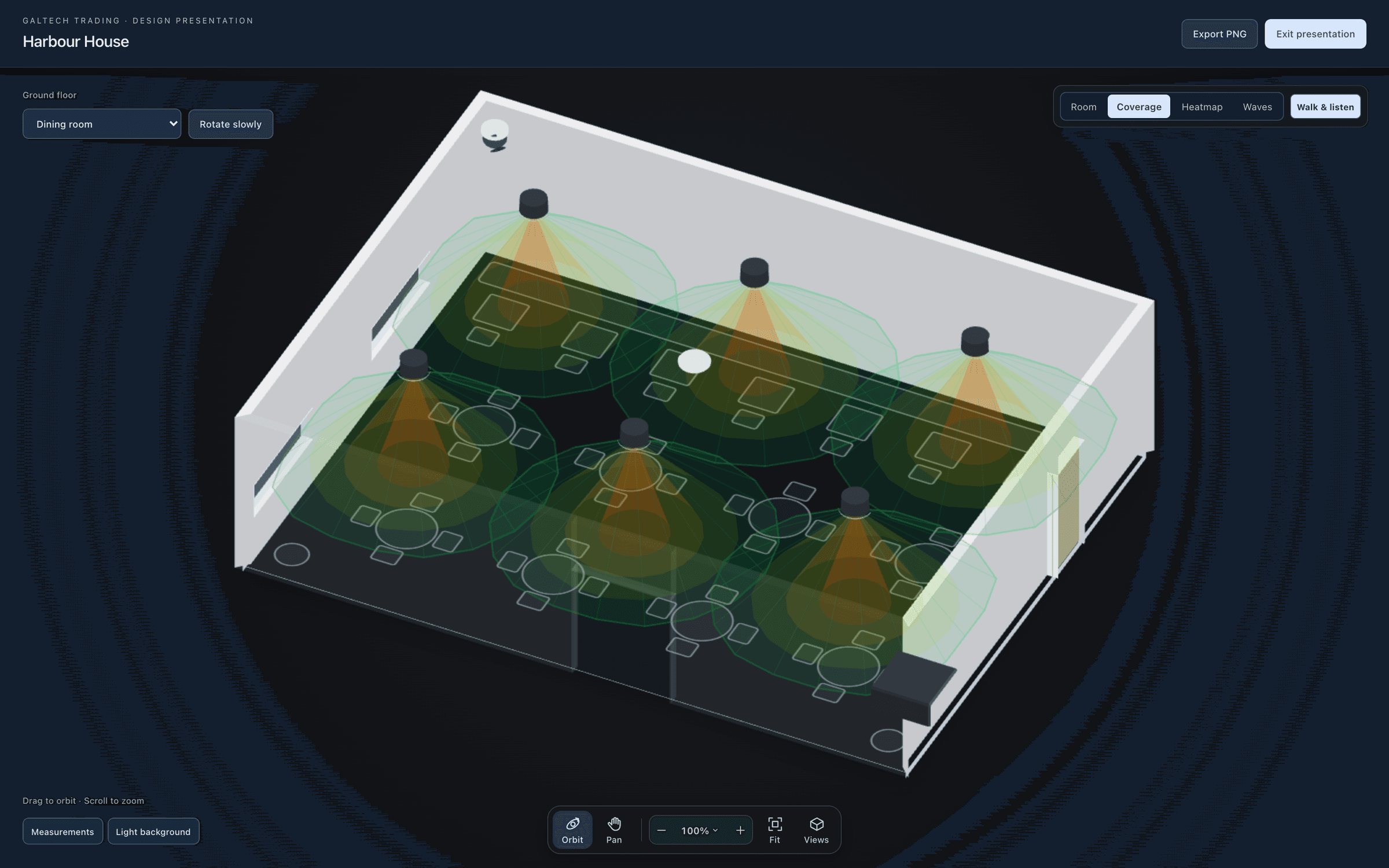
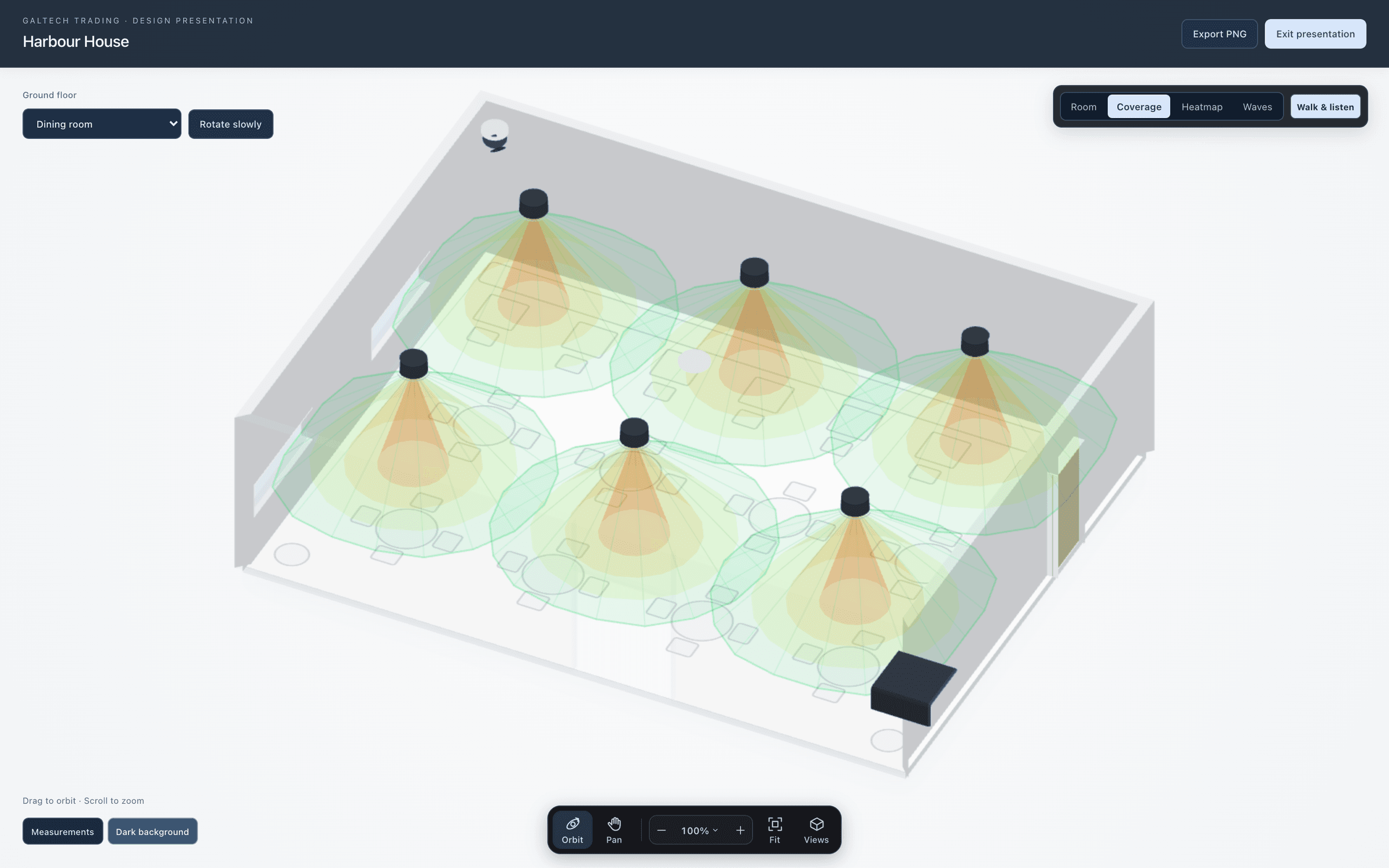
Open 3D
- Choose 3D above the plan.
- Use Orbit in the canvas dock and drag the model to look at the wall geometry, the materials and the mounting heights from several angles.
- Switch the scene with the buttons at the top of the 3D view: the clean room, coverage, the heatmap or waves.
- Coverage shows where each speaker points, as a cone on the floor.
- Heatmap colours the floor with the predicted level, like the plan.
- Waves animates the sound leaving each speaker, coloured like the heatmap. Clients often find it easier to read than a colour map.
- The room view is the one to show when someone just wants to see the space.
The 3D view shows the floor you have selected in the Project explorer. To look at another floor, select it first.
A clean view for the client
The editing handles, the corner dots and the wall chips, are off in 3D, because this is the view you turn towards a customer. Turn on Layers → 3D edit handles when you want to drag a corner or open a wall in 3D. With the handles hidden, a click only selects: nothing moves unless you drag it.
Walk through the design
- Choose Walk & listen in the 3D controls, or Test sound from Present in the top bar.
- Play a track, and use headphones for the clearest picture.
- Move through the room and stop at several listening positions. A readout shows the predicted level where you stand, against the area’s target.
- Exit the walk with the corner button or Esc, then choose Plan. Nothing you placed has moved.
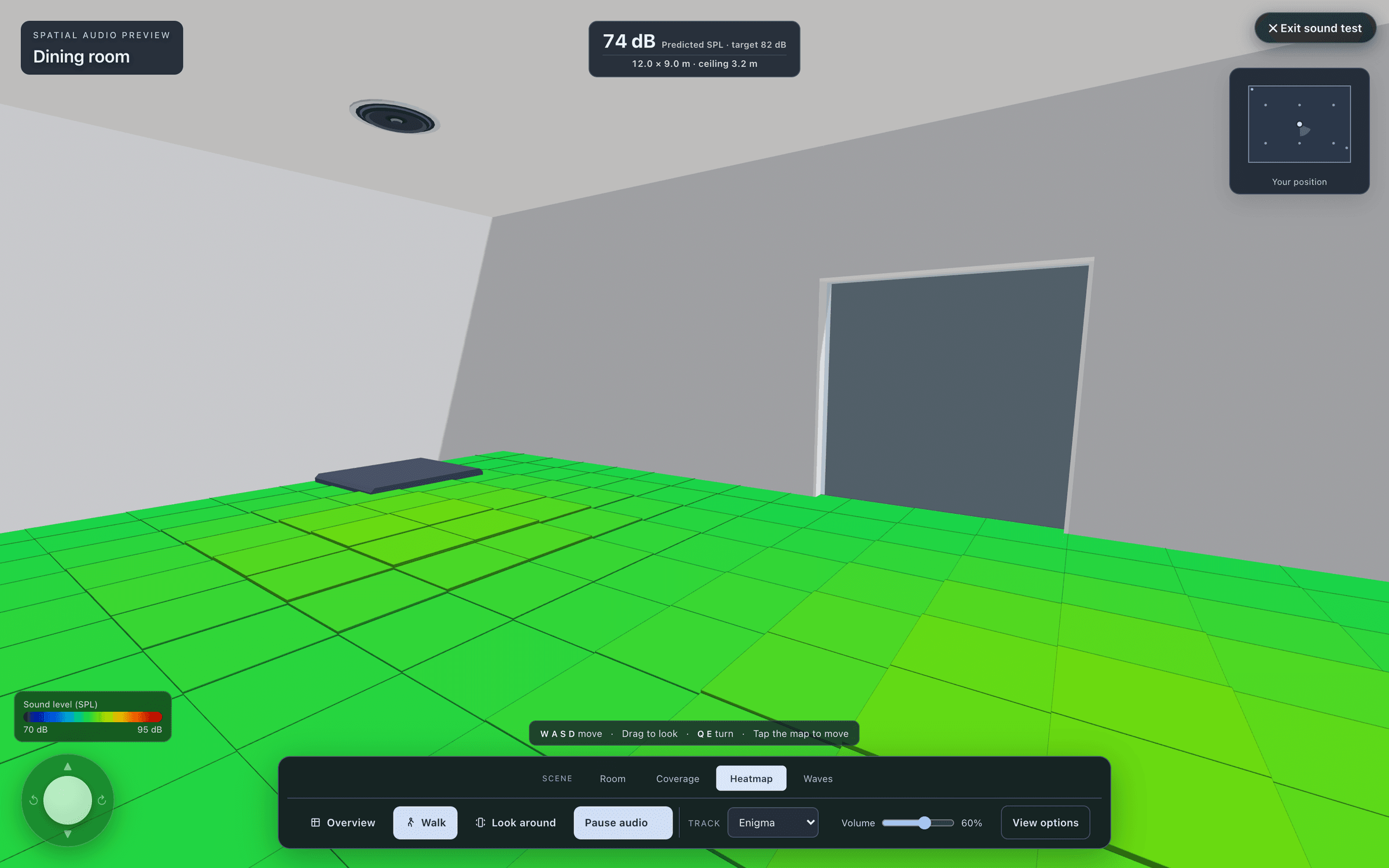
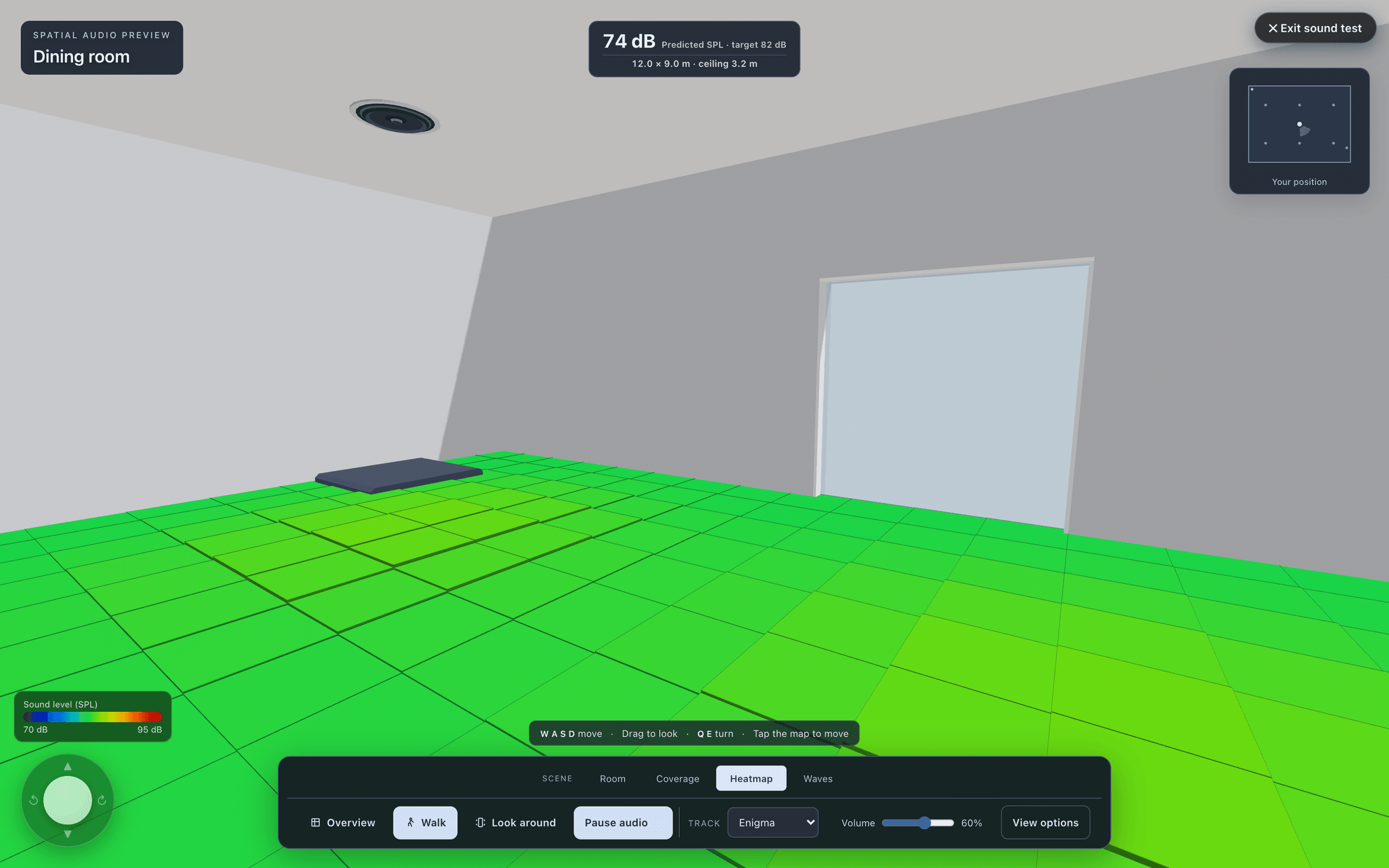
| Keys | Action |
|---|---|
| WASD | Move |
| Mouse or touch | Drag to look |
| QE | Turn |
| Mouse or touch | Tap the map to move |
You can also click or tap a glowing point to stand there, or anywhere on the floor. Overview steps back out to the doll’s-house view.
What you hear
- Each speaker plays from its real direction and height, at the level the model predicts there, including its aim and any site calibration.
- Each speaker plays only its own frequency range: a small satellite sounds lean and bright, a subwoofer plays only the lows, and a system without one sounds light on bass, as it would in the room.
- The room’s reverberation comes from its RT60, so the surfaces and the occupancy change how live it sounds. The bass swells and thins as you walk through the room’s modes.
- With a noise floor set, Noise plays the room’s background, so you can hear how the system cuts through a busy venue.
- Sound wave shows coloured wavefronts spreading from the speakers, in time with the music.
Music in the toolbar loads your own track for the walk-in and the client’s tour: see Share a 3D tour with the client.
Warning
Walk and listen is a comparison between positions, played through your headphones or speakers. It is not a calibrated measurement of what the installed system will do. Use it to judge evenness and to show a client the idea, then verify on site with a meter.
Other ways to show the design
- Present in the top bar opens the client presentation, the walk-in and the 3D tools. Focus hides the side columns if the client is watching your screen.
- Guided tours record a sequence of camera stops for a presentation.
- Share client 3D sends the client a link and a QR code to open one area on their phone.