Audio
Aim a speaker and read the vertical coverage
Turn a speaker with pan, tilt it towards the listeners, and use the vertical coverage view to see where its beam meets listening height and how loud it is.
On this page
Aiming is separate from position. Pan turns the speaker on the spot and tilt angles it up or down; neither moves where it is mounted. The vertical coverage view then shows, in section, where the beam meets the people listening.
Pan and tilt
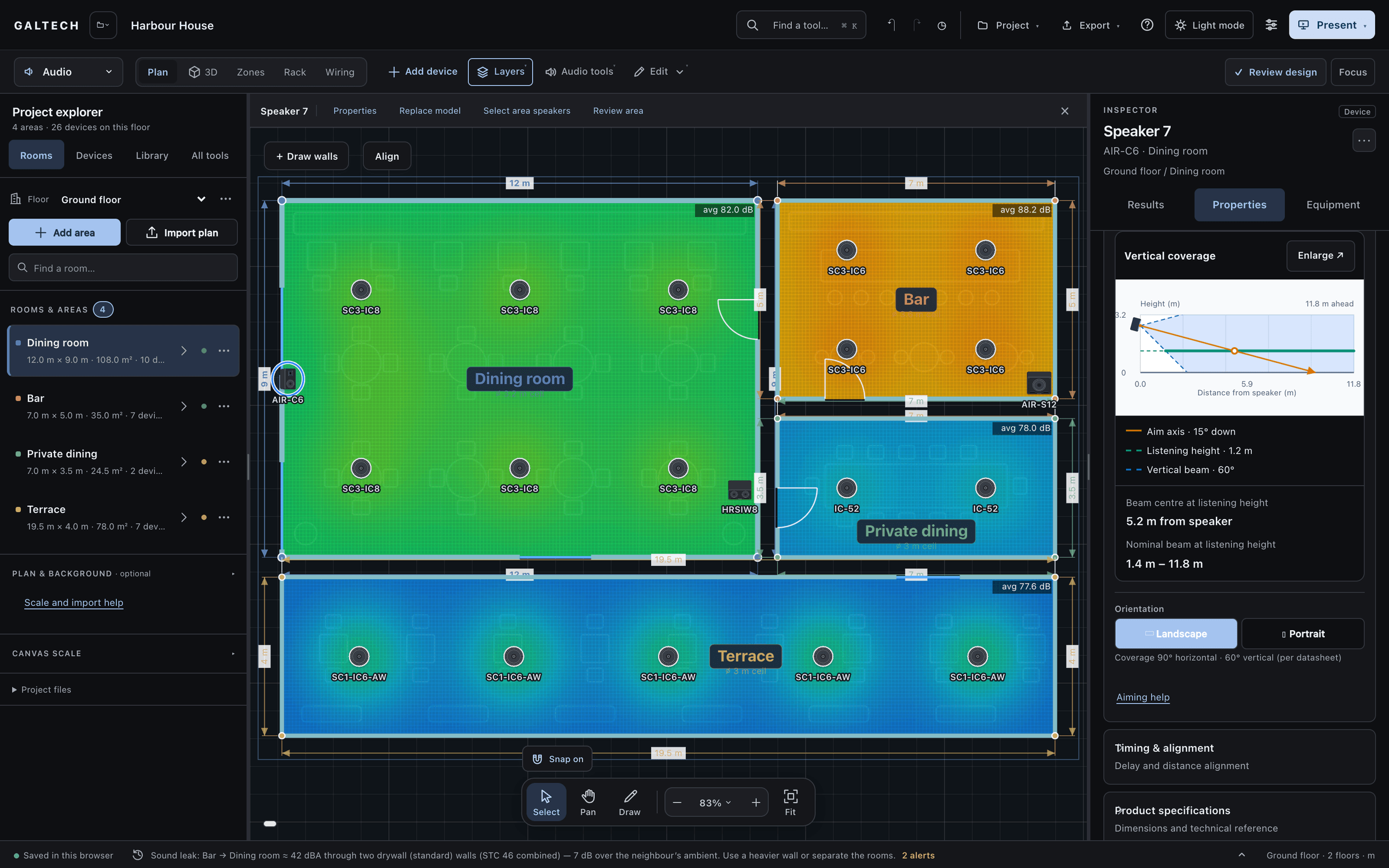
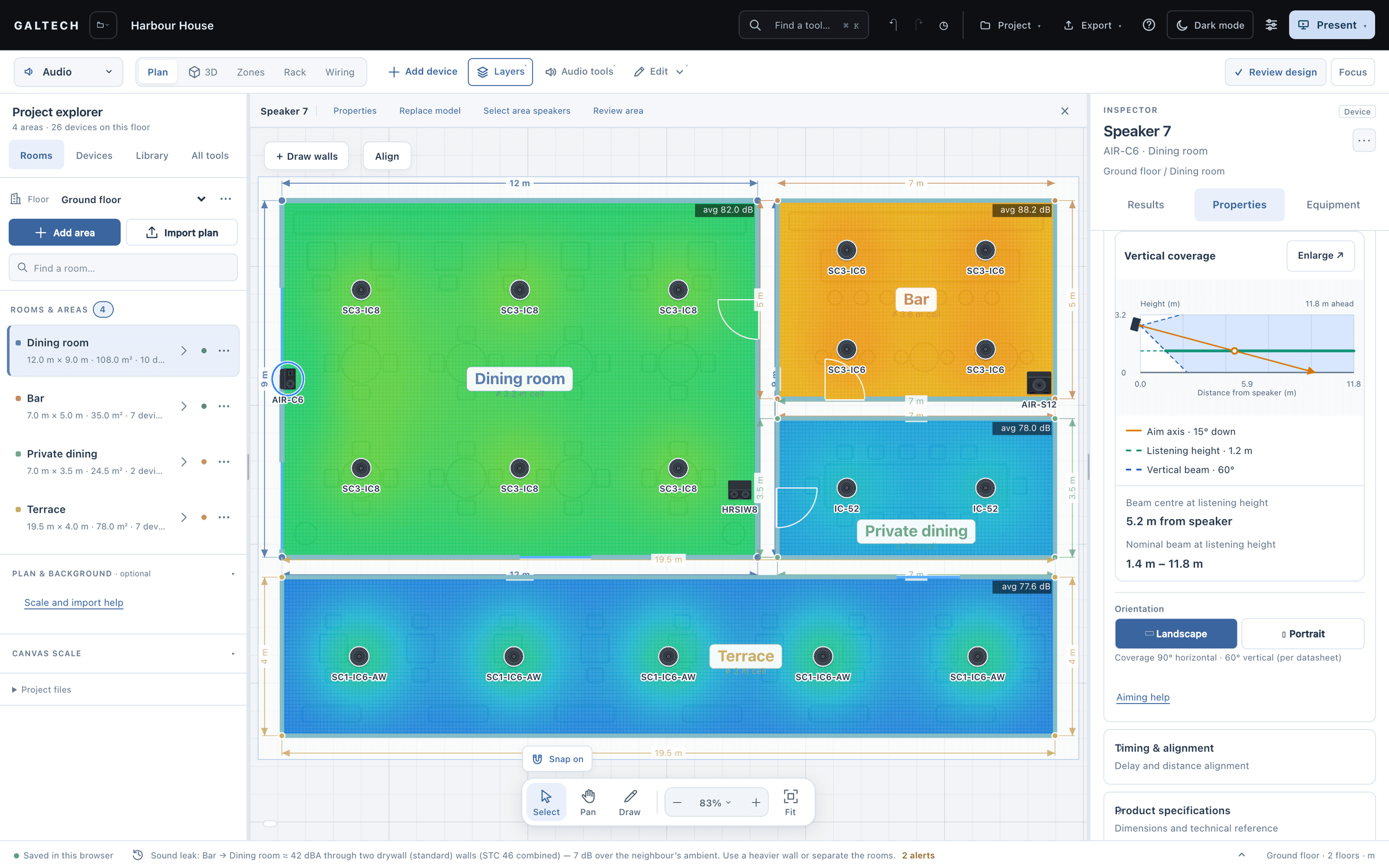
Select the speaker and open Properties → Aiming & orientation.
- Pan is the direction the speaker faces on the plan. Use the slider, the direction presets, or the 5° and 15° buttons. The speaker turns at its saved position.
- Vertical aim is the tilt. For a ceiling speaker, 90° down points straight at the floor, which is the default. Drag the slider to angle it towards the audience, or press Level for a speaker that fires horizontally.
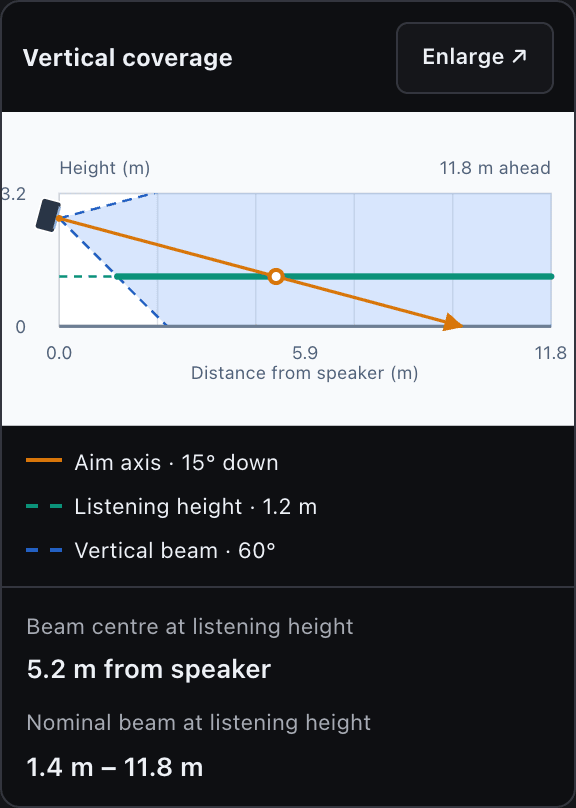
Below the slider is a small side view of the beam. Enlarge opens it properly.
Read the vertical coverage view
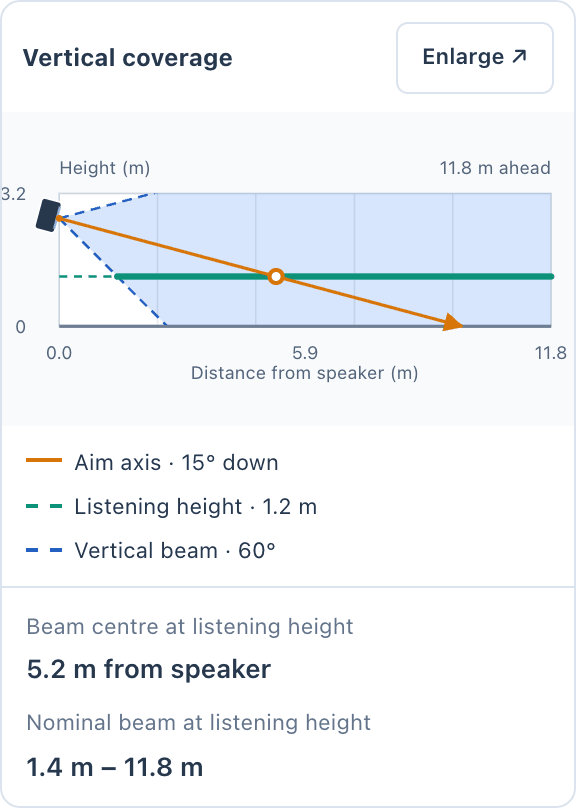
The enlarged view is a section through the room along the speaker’s pan direction.
- The orange line is the centre of the beam.
- The blue dashed lines are the nominal edges of the beam, from the coverage angle on the datasheet.
- The thick green segment is the part of the listening plane that sits inside the beam.
Two readouts put it in numbers: Beam centre at listening height, and Nominal beam at listening height, the range of distances the beam covers there. On a wide screen the diagram, the distances and the aiming controls appear together.
Compare tilts
- Choose Down 30° as a starting point.
- Adjust Vertical tilt to compare 45° and 20° down, with the slider or its arrow keys. Thirty degrees reaches further across the room; sixty keeps the sound closer to the speaker.
- Choose Sound level. The view switches to this speaker’s predicted level against a decibel scale.
- Change the Pan direction to look at another section, then return to Beam coverage to compare the distances.
Warning
Being inside the nominal beam is not the same as being loud enough. A wide beam that reaches ten metres away is quiet when it gets there. Check Sound level and the full heatmap before you settle on a tilt.
The aim stays put
The aim is saved with the speaker. It survives a trip to 3D and to the walk-in, and moving the view never changes it. If you Stick to wall, the speaker keeps facing into the room as you slide it along the wall.
If a speaker seems to point the wrong way, see My speaker points the wrong way.