Home / Docs / Reference / Keyboard shortcuts Reference
Keyboard shortcuts Every keyboard shortcut in the design tool, from the command palette and undo to drawing, nudging, the wiring diagram and the walk-in 3D view, in one reference.
On this page The essentials On the plan While drawing Selecting and arranging In the wiring diagram Walk and listen The command palette Mouse and trackpad Press ? anywhere in the tool to open its shortcuts sheet. On a Mac, use ⌘ where Windows uses Ctrl .
The essentials#
The five the tool’s own sheet lists first:
Keys Action Ctrl or ⌘ + K Command palette (find anything) ? This shortcuts sheet Ctrl + Z Undo Ctrl + ⇧ + Z Redo Esc Close any dialog
On the plan#
Keys Action Delete or Backspace Remove the selected speaker(s) Arrow keys Nudge selected speakers · Shift = ×4 Shift (while drawing) Free angle (skip the straight snap) Ctrl or Cmd + Z Undo · Shift to redo Space + drag Pan the view Scroll wheel Zoom in and out Double-click (Draw Wall) Finish the wall outline Escape Cancel a tool · close Help
While drawing#
Keys Action Type a number Sets the length of the wall you are drawing Tab Moves to the wall’s angle Enter Places the wall; finishes an interior wall or a redrawn wall Backspace Removes the last point you placed Esc Cancels, or stops Fill room Hold Shift Draws at a free angle, without the straight snap Hold Alt Places a dragged device freely for a moment; reshapes a wall freely (Option on a Mac)
Selecting and arranging#
Keys Action Shift and clickAdds a speaker, an area or a listener to the selection Arrow keys Nudge the selection; hold Shift for four times the step Ctrl + D Duplicates the selected area with its speakers, or the selected shape Delete Removes the selection Esc Finishes aiming a camera
In the wiring diagram#
Keys Action Ctrl + Z Ctrl + Shift + Z Undo and redo every change Shift and clickAdds a device to the selection Hold Shift and drag Selects every device inside the box Ctrl + A Selects every device Delete Removes the selected devices or wire
Walk and listen#
Keys Action W A S D Move Mouse or touch Drag to look Q E Turn Mouse or touch Tap the map to move
Esc leaves the walk-in and the sound test, and returns you to the design.
The command palette#
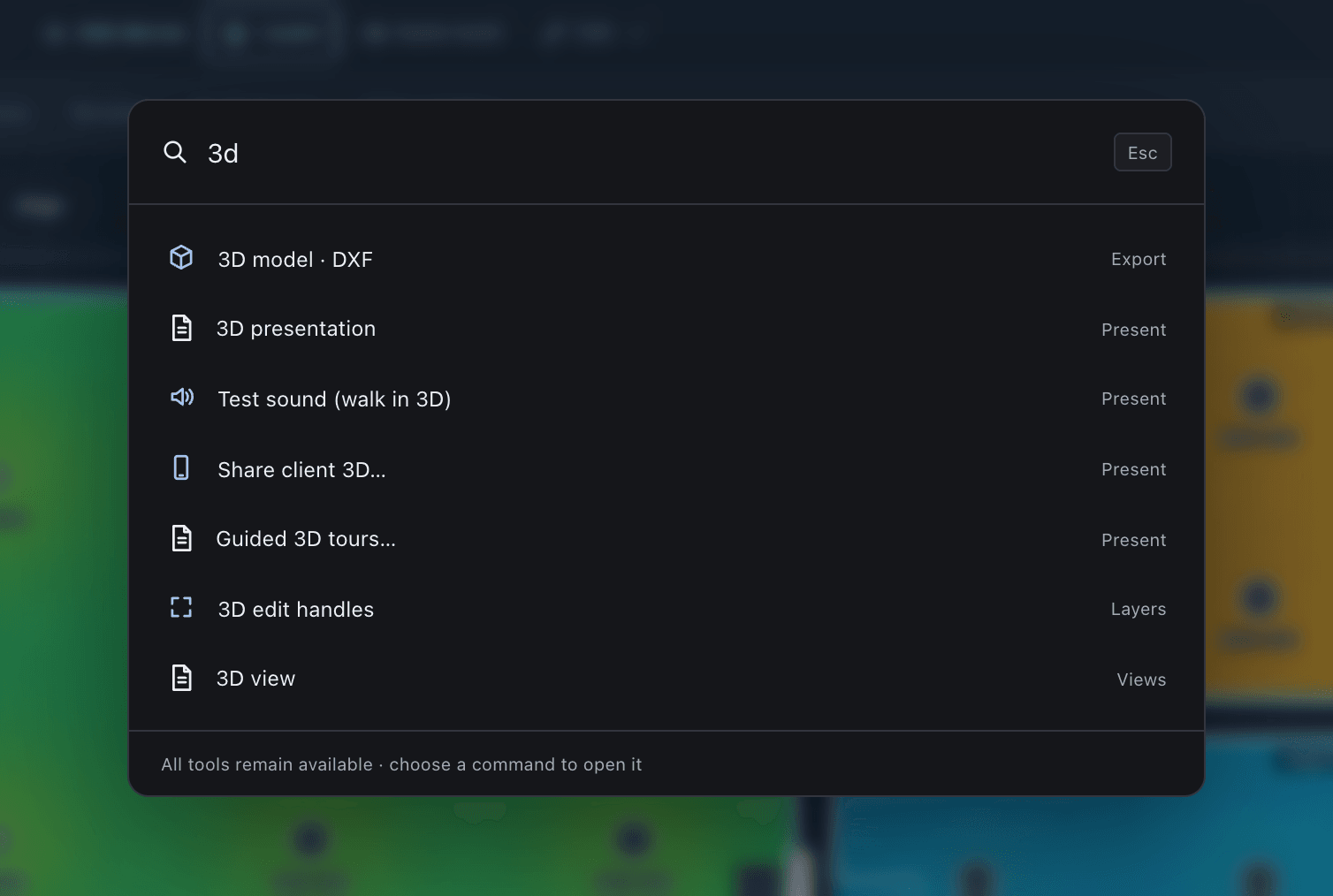
Ctrl + K ⌘ + K Find a tool : type part of a command’s name and press Enter . The palette holds every item in the top bar menus, the canvas toolbar menus and the Draw menu, plus these commands of its own:
Command Group Add floor Project Rename current floor Project Edit selected area Project Undo Edit Redo Edit Walk & listen Present Project information Project Find a product Libraries Reports & exports Export Plan view Views 3D view Views Zones view Views Rack view Views Wiring view Views
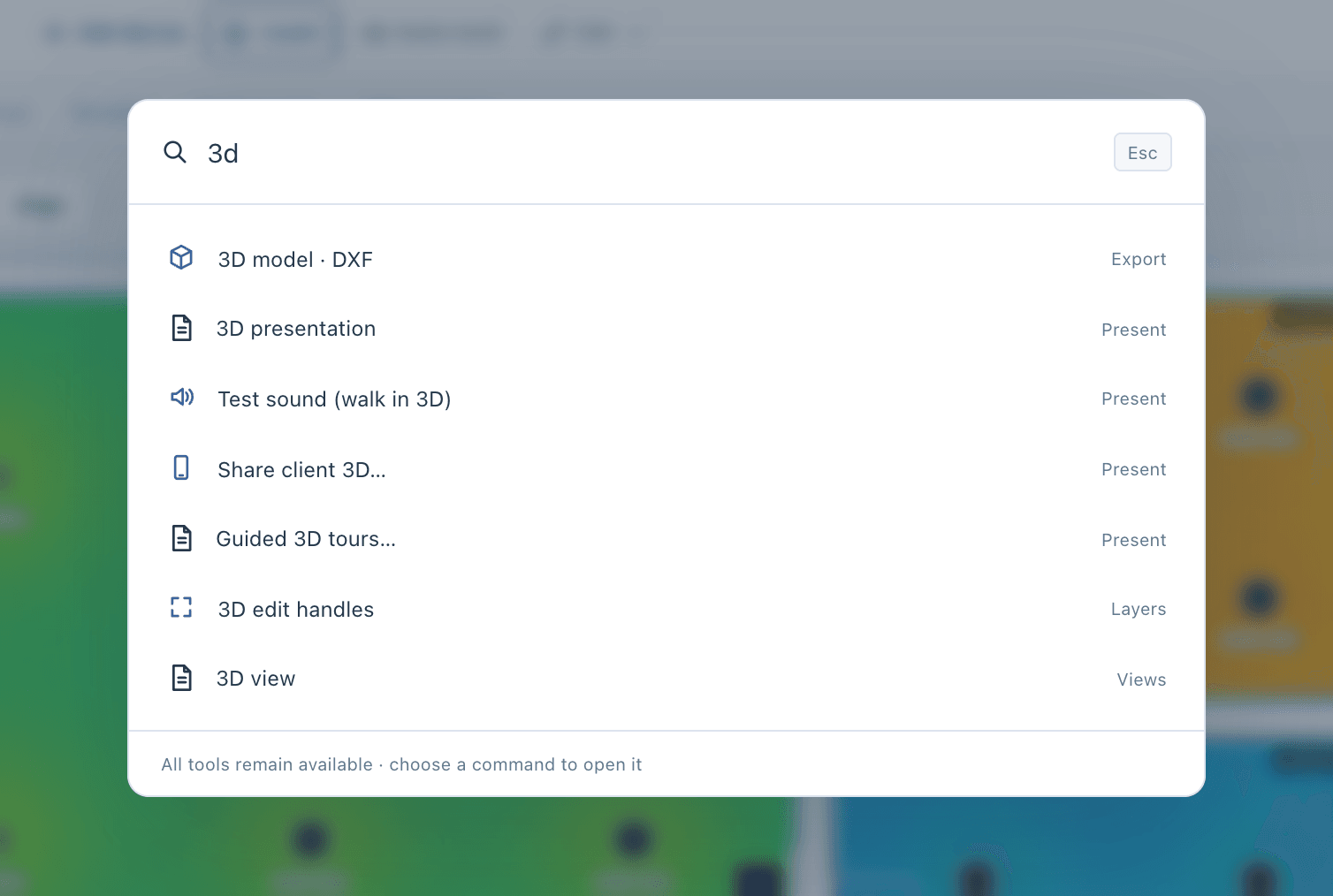
The command palette, searched for “3d”. Mouse and trackpad#
Scroll to zoom in and out.Space and drag , or the Pan tool, to move the view.Double-click to finish a wall outline, or to put a moved area name back in the centre.Drag any number field , or its label, left or right to nudge its value; hold Shift for bigger steps.