Reference
Panels, layout and display settings
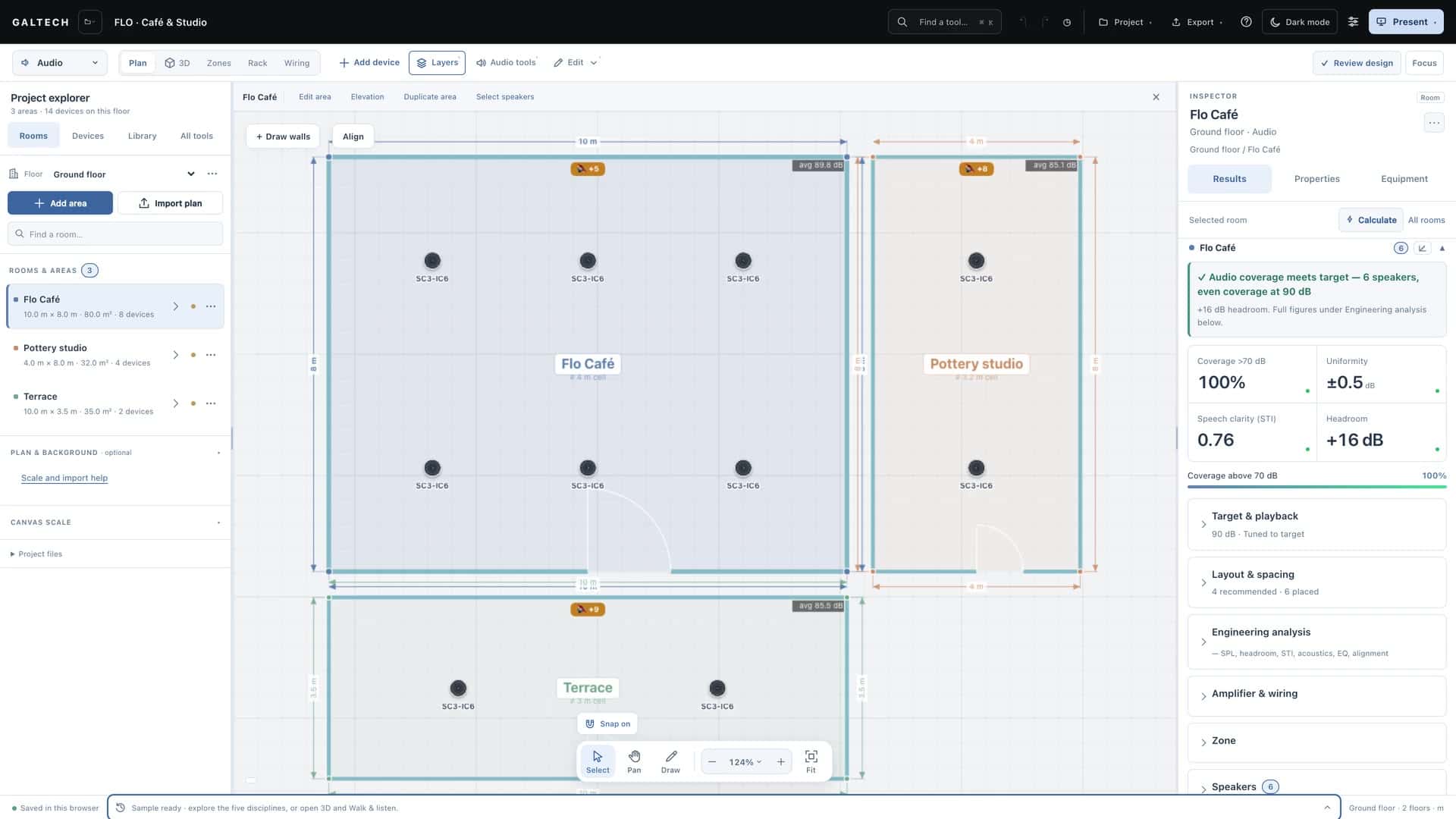
Fit the workspace to your screen: resize the side columns, focus on the plan, scale the text, switch the theme, use colour-blind-safe maps and work by touch.
On this page
The workspace has three columns: the Project explorer, the canvas and the Inspector. Everything on this page changes how they look, never the design itself.
Resize the side columns
- Drag to widen. Drag the gutter on either side of the canvas to make the left or right column wider. The canvas resizes to fill the rest.
- Double-click to reset. Double-click a gutter to put that column back to its default width.
- Remembered. Your column widths come back the next time you open the tool.
Focus on the plan
Focus, at the top right, hides both side columns so the plan fills the window: good on a small laptop or a large drawing, and when a client is looking at your screen. Press it again, or press Esc, to bring them back. Nothing in the design changes while they are hidden.
Text size
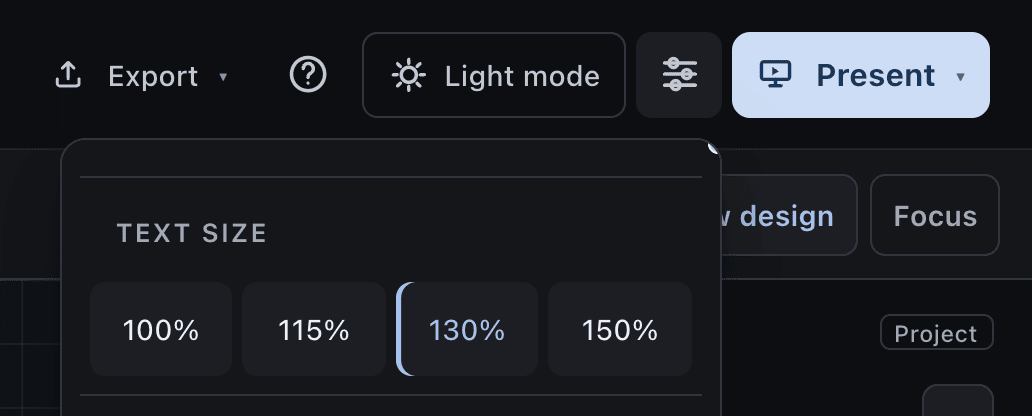
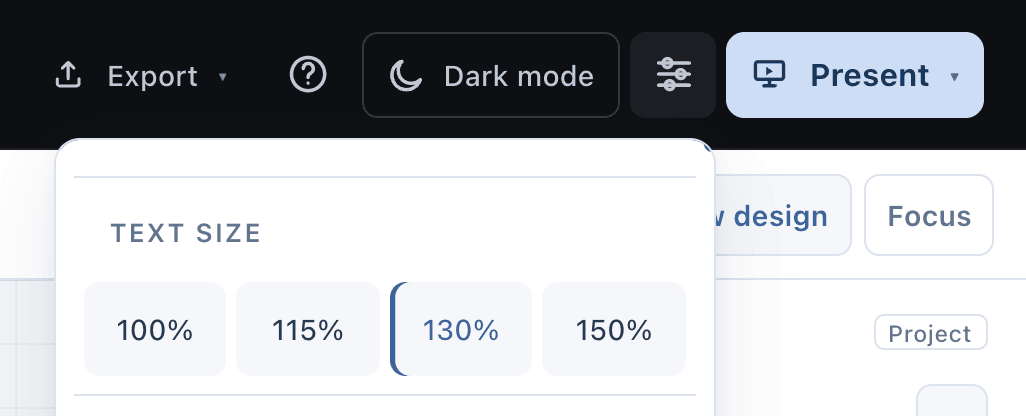
The settings menu in the top bar scales the whole interface: 100%, the original size, 115%, 130% or 150%, the largest. It helps on a high-resolution display or when you share your screen, and dialogs and toolbars still fit at the larger sizes. The same menu shows the version you are running, with its release notes.
Light or dark
The theme button in the top bar switches between the light and dark themes. In the dark theme the plan sheet turns near-black with a light grid, and the 3D backdrop is black.
Colour-blind-safe maps
Layers → Colourblind-safe colours switches every heatmap, the sound level, the Wi-Fi signal and the CCTV pixel density, to a perceptually even ramp from violet through blue, teal and green to yellow. It stays legible for all common types of colour vision, and still reads low to high from left to right. The choice is remembered on this device.
Tablets and touch
The tool works on a tablet on site:
- One finger is the mouse: select, drag, place, draw and pan. A short tap clicks and a quick double tap double-clicks, to finish an outline, for example.
- Two fingers pan the plan, and a pinch zooms around the point between your fingers, in the plan and in 3D alike.
- Buttons, menu rows and fields grow to finger size on a touch screen.
The status bar
The bar along the bottom of the workspace tells you:
- whether your work is saved, as Saved in this browser,
- hints for the tool you are using, such as the next step after importing a plan,
- warnings such as a sound leak between rooms,
- the active floor, the number of floors and the units.