Getting started
Save, back up and reopen projects
Where the tool keeps your work, from the automatic copy in this browser to project files and your portal account, plus backups, visual history and templates.
On this page
The tool saves as you work, but it saves to more than one place, and they do different jobs. Knowing which is which means a cleared browser or a new laptop never costs you a design.
Three places your work can be
| Where | What it is | How it gets there |
|---|---|---|
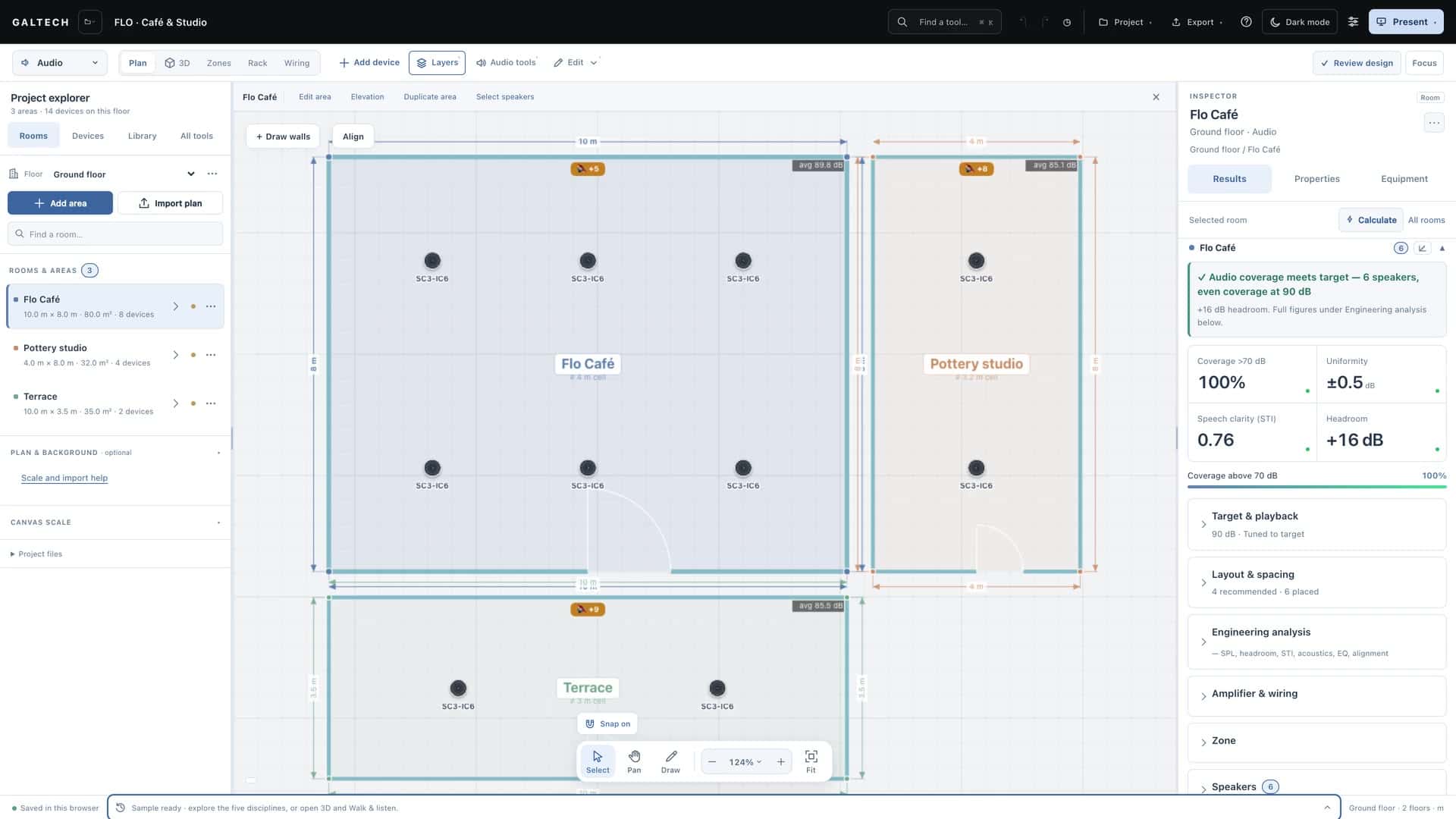
| This browser | An automatic working copy | On its own, a moment after each change. The status bar says Saved in this browser. |
| A project file | A named file on your computer | Project → Save project file or Save file as |
| Your portal account | A project you can open from any machine | Project → Save project in the Portal group |
The copy in this browser is a convenience, not a backup: clearing the browser’s data removes it. Keep a project file or a portal copy of anything you would not want to redraw.
Keep an editable copy
- Before a large change to the layout, open the Project menu and choose Save project file. In Chrome and Edge the first save asks where, and later saves replace that same file.
- To keep a separate revision, choose Save file as and give the file a new name, such as the revision letter.
- To open the design on another machine, save it to your portal account with Save project, then use Load project there.
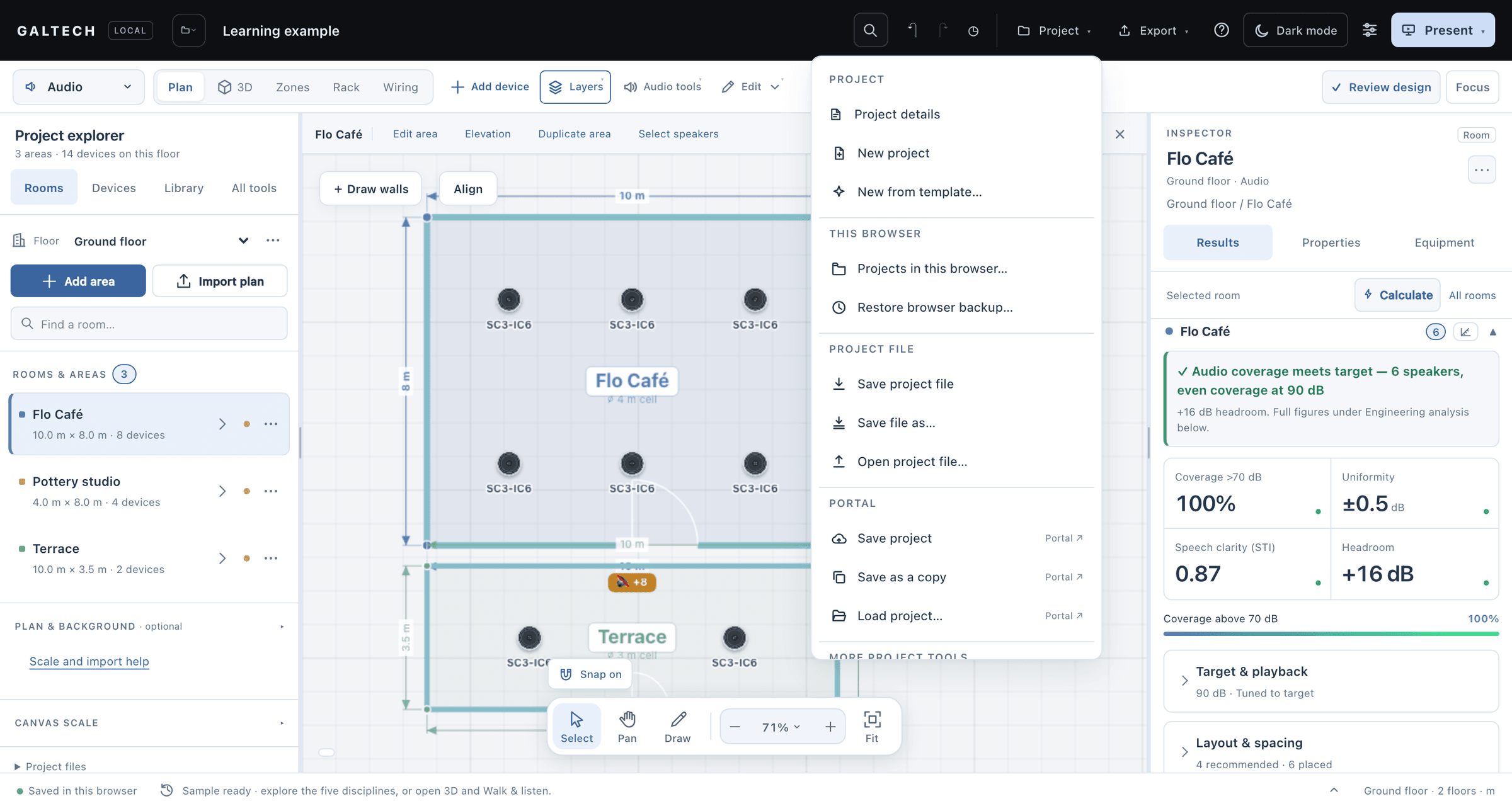
The Project menu
- Project: Project details (the name, client, date and revision on every document), New project and New from template.
- This browser: Projects in this browser lists every design this browser has saved automatically. Restore browser backup brings back one of the automatic snapshots it takes every few minutes; the last 25 are kept.
- Project file: Save project file, Save file as and Open project file.
- Portal: Save project, Save as a copy and Load project, all in your portal account.
- More project tools: among others, Export all projects, which downloads every portal project, your current design and your product library as one zip. Each file opens again with Open project file.
Get an earlier version back
- Undo and redo, in the top bar, step back and forward through every design action: drawing, rooms, walls, devices and moves. The keys are CtrlZ and CtrlShiftZ, with ⌘ on a Mac.
- The visual history, the clock icon in the top bar, shows your recent edits as thumbnails. Click one to preview the design at that point, then restore it.
- Restore browser backup goes further back, to the snapshots this browser keeps.
Start a new project
New project starts with an empty plan. New from template starts from a complete design you can explore and adjust: areas, speakers laid out by the advisor, Wi-Fi and CCTV, already calculated.
| Template | Areas | Access points | Cameras |
|---|---|---|---|
| Villa | Living room, 8 × 6 m; Majlis, 6 × 5 m; Bedroom, 4.5 × 4 m | 2 | 1 |
| Restaurant | Dining, 12 × 8 m; Bar, 5 × 4 m; Terrace, 6 × 4 m | 2 | 2 |
| Retail | Sales floor, 10 × 8 m; Stock room, 4 × 3 m | 2 | 2 |
| Office | Open plan, 12 × 10 m; Meeting room, 5 × 4 m; Reception, 4 × 4 m | 3 | 1 |
Set the project’s name, client, date and revision in Project → Project details before you export anything: they print on the cover of every document.
Deliverables are not the project
A PDF report, a DXF drawing or a CSV schedule is something you hand over. None of them can be opened as the editable design. Keep the project file alongside the deliverables, so the design can still be changed when the client asks.
In the Windows app
The Windows app keeps your projects on your account and syncs them when it is online. Changes you make offline are sent the next time it connects. See Install and use the Windows app.